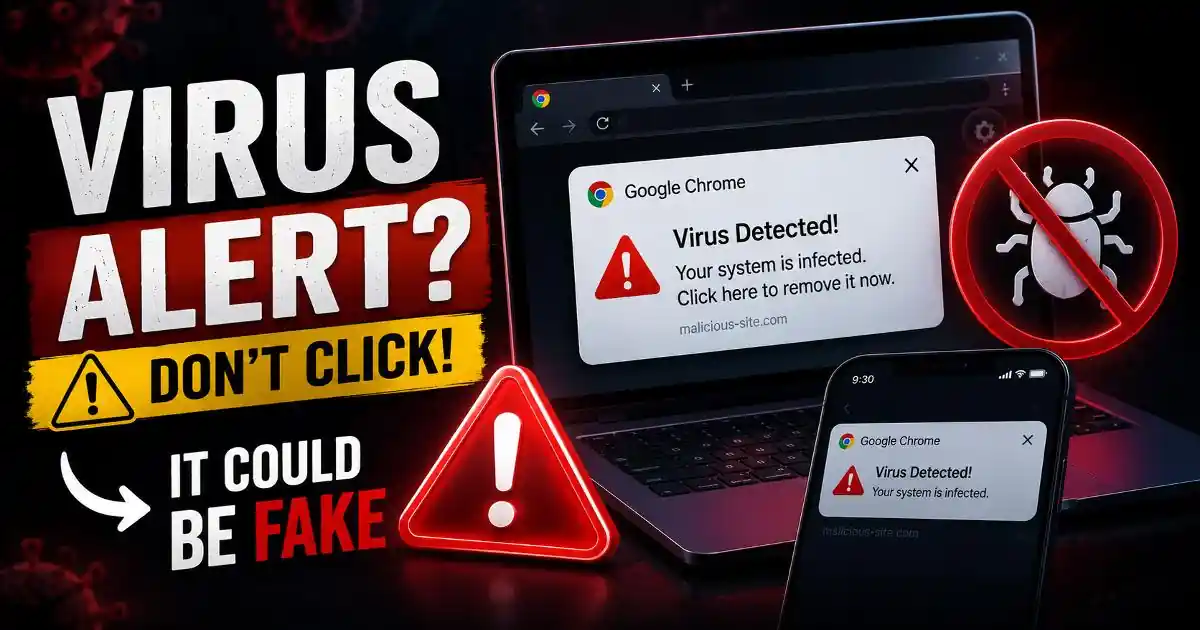
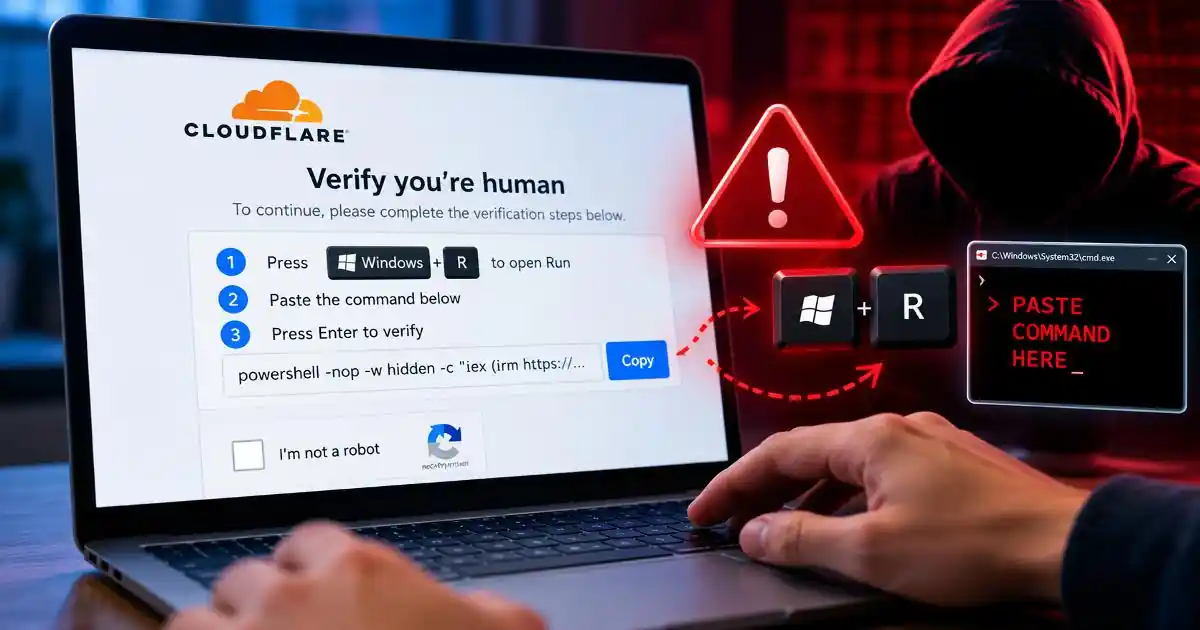
A fake CAPTCHA scam can turn an ordinary website visit into a security incident when a supposed human verification check asks you to open a system tool and paste a command. The page may resemble a familiar Cloudflare challenge or a standard 'I'm not a robot' test, making the instructions appear trustworthy.
These attacks are associated with ClickFix, a social engineering technique that persuades people to perform actions that install malware themselves. Instead of relying entirely on a software vulnerability or an automatic download, attackers convince visitors that executing a command is a necessary step to access a page, watch a video, or complete verification.
In October 2026, Malaysia's MyCERT published an advisory describing a ClickFix campaign targeting macOS users through compromised websites. New Zealand's National Cyber Security Centre also warned about compromised websites displaying fake CAPTCHA and Cloudflare-style verification pages. These incidents demonstrate why users should understand the difference between genuine verification and instructions that ask them to execute code.
How the fake CAPTCHA scam works
The attack often begins when someone visits a website that appears legitimate. The page might display an article, a download, a streaming interface, or a familiar security challenge. In some cases, attackers have compromised an existing website rather than creating an obviously suspicious domain.
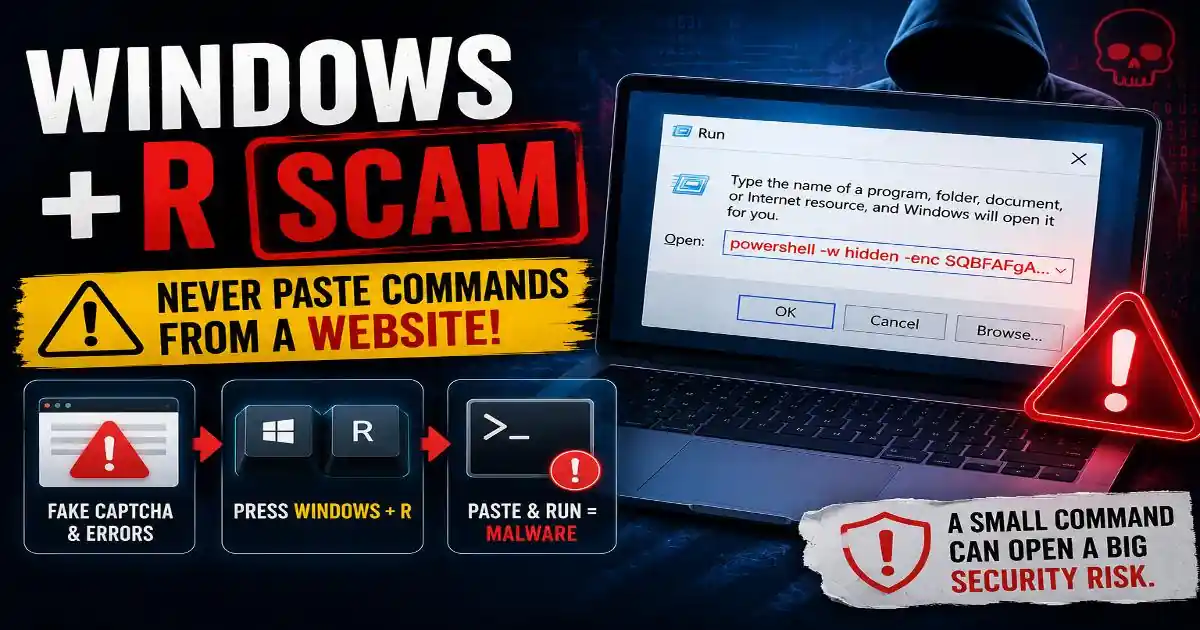
A verification overlay then tells the visitor that additional steps are required. It may instruct them to press Windows+R, open PowerShell or Command Prompt, or launch Terminal on a Mac. The visitor is asked to paste a command and press Enter or Return.
The important detail is that the website may have already copied a malicious command into the clipboard. The visitor thinks they are completing a routine check, but the command can download and execute a script, retrieve malware, or initiate other unwanted activity.
Attackers use this approach because people are accustomed to following on-screen instructions. Familiar branding, urgent messages, and simple step-by-step directions can make a dangerous action appear routine. The technique is commonly called ClickFix because the page presents the action as a way to fix a problem or complete a task.
Fake CAPTCHA scam versus legitimate human verification
Legitimate CAPTCHA systems help websites distinguish people from automated traffic. Depending on the implementation, they may ask you to select images, enter characters, complete an interactive challenge, or confirm that you are human through a browser-supported interaction.
Services such as Cloudflare Turnstile can perform verification without requiring a traditional image puzzle. A legitimate challenge may sometimes require another attempt or additional interaction, but it should not ask ordinary visitors to execute shell commands to prove they are human.
This distinction matters more than the appearance of the page. Attackers can copy logos, colors, fonts, and verification messages. A padlock in the browser address bar indicates an encrypted connection to a website; it does not prove that the website or its instructions are safe.
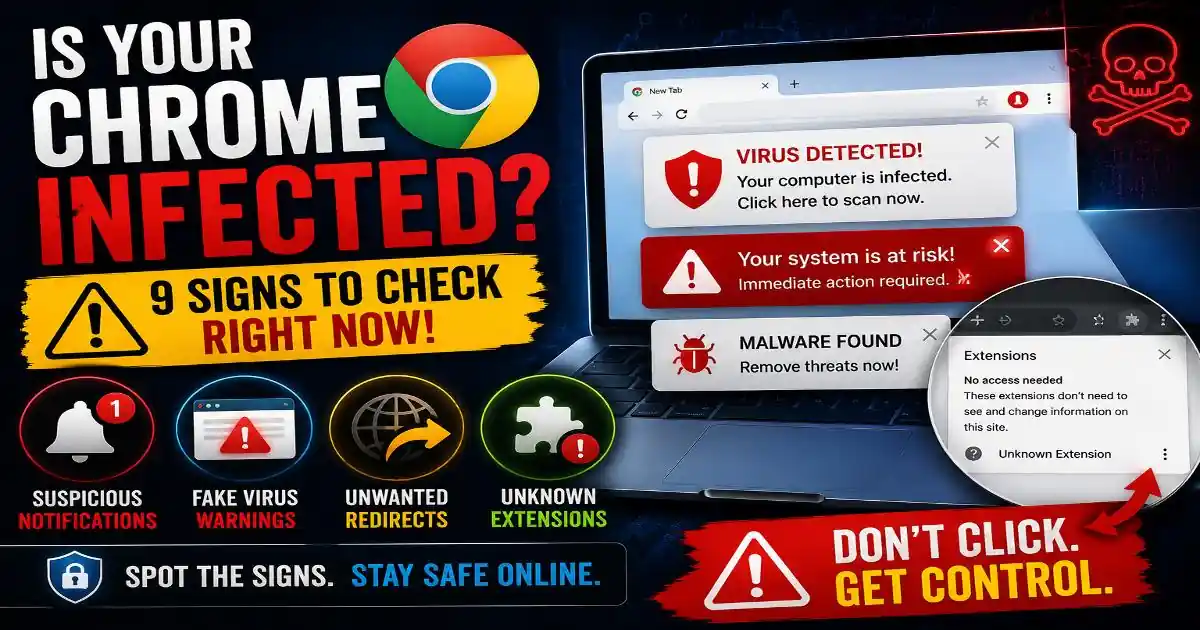
Watch for instructions that tell you to open Windows Run, PowerShell, Command Prompt, macOS Terminal, or another system utility and paste unfamiliar text. A request to disable antivirus protection, bypass a security warning, or download an unexplained verification tool is another strong reason to stop.
Why ClickFix attacks target Windows and Mac users
The Windows+R scam takes advantage of a familiar keyboard shortcut. Windows+R opens the Run dialog, a legitimate feature used to launch applications and system tools. Attackers exploit that familiarity by telling visitors to paste a command that appears to complete a verification process.
Depending on the campaign, the command may invoke PowerShell or another Windows component to download additional files, run a script, or establish access for an attacker. Possible consequences include information theft, unauthorized remote access, and further malware installation. The exact outcome depends on the command and the payload involved.
Mac users face a similar risk. MyCERT's October 2026 advisory described a campaign in which a fake verification page directed visitors to open Terminal and execute a supplied command. The reported malware targeted browser information and cryptocurrency wallet data.
macOS Terminal is a legitimate administrative tool, not an inherently dangerous application. The risk comes from executing commands without understanding what they do, particularly when a stranger or an untrusted webpage supplies them. The same principle applies to Windows, Linux, and other systems that support command-line execution.
These attacks may also use compromised websites, malicious advertising, or scripts that selectively display suspicious content to real visitors. A page appearing normal in a security scanner does not necessarily mean every visitor receives the same content.
What happens if you paste and run the command?
Copying text into a clipboard does not normally execute it by itself. Likewise, opening a suspicious verification page without following its instructions generally presents a much lower risk than actually running the supplied command. However, browser exploits and other independent threats are possible, so no interaction should be treated as an absolute guarantee of safety.
The greater risk begins when you execute the command. Depending on its contents, it may contact a remote server, download a script, launch another process, or give malicious software an opportunity to collect information.
Potential consequences include stolen passwords, browser session cookies, personal files, cryptocurrency wallet information, or access to accounts that remain signed in. Stolen session cookies can sometimes allow attackers to impersonate a user without immediately needing the account password.
Not every ClickFix page delivers the same malware, and not every command produces the same result. Some attacks may fail because of security controls, unavailable servers, or incompatible systems. Nevertheless, you should treat an executed command from a fake verification page as a possible security incident.
What to do if you already ran a suspicious command
Act promptly, but do not panic. The correct response depends on the operating system, the command executed, and whether sensitive information may have been exposed.
- Stop interacting with the page. Do not run additional commands, install suggested fixes, or follow further instructions from the suspicious website.
- Disconnect the affected device from the internet. If you executed the command and suspect malware, disconnect Wi-Fi or unplug the network cable. This can interrupt communication with an attacker, although it does not remove malware.
- Use a separate, trusted device. Change passwords for important accounts, beginning with your primary email and other accounts that could be used to reset credentials. Revoke active sessions where the service provides that option, and enable multifactor authentication.
- Run a reputable security check. Use a trusted security product or contact a qualified technician to examine the device. On a managed work computer, contact your IT or security team immediately rather than attempting an independent cleanup.
- Protect financial and wallet accounts. Review banking activity and account alerts. If cryptocurrency wallet credentials or recovery phrases may have been exposed, seek guidance from the wallet provider and arrange recovery using a clean device. Never share a recovery phrase with anyone offering assistance.
- Preserve useful evidence. Record the website address, approximate time, command if available, and any security alerts. Do not rerun the command to reproduce the incident. Report the incident to your local cybersecurity authority when appropriate.
If you are unsure what ran, do not assume that deleting browser history or uninstalling a suspicious file has resolved the problem. Some malware can persist or leave credentials exposed even after the original process stops. A professional assessment may be necessary, and a clean operating-system reinstall may be appropriate in serious cases.
How to avoid fake human verification pages
The safest rule is simple: never execute a command supplied by a webpage merely to prove that you are human. If a verification screen asks you to use Windows Run, PowerShell, Command Prompt, or Terminal, close the page instead of following its directions.
If you are uncertain whether a page is legitimate, navigate to the service's official website by entering its known address yourself. Avoid unfamiliar downloads and advertisements that claim you need a special verification component. Keep your operating system, browser, and security software updated, and use a standard account rather than an administrator account for everyday work where practical.
Review your browser extensions and installed applications periodically. Remove items you do not recognize, and pay attention to unexpected permission requests. Strong account security, multifactor authentication, and a password manager can reduce the damage caused by stolen credentials, although none of these controls makes executing a malicious command safe.
These habits complement other digital protection measures, including phishing awareness, mobile security, app permission reviews, and regular software updates. Businesses should also train employees to report unusual verification prompts and provide a clear process for responding to suspected malware incidents.
Why trusted websites can still display dangerous prompts
A familiar website is not automatically safe at every moment. Attackers sometimes compromise legitimate sites by exploiting outdated software, vulnerable plugins, stolen administrator credentials, or weaknesses in website hosting. They can then inject scripts or display malicious content while the site's normal pages remain available.
This does not mean that every website using Cloudflare or CAPTCHA is suspicious. It means users should judge the requested action rather than relying exclusively on branding or reputation. Website owners should maintain software, remove unused plugins, protect administrator accounts with multifactor authentication, and investigate unexpected changes to their pages.
ClickFix also highlights a broader security challenge: technology cannot prevent every attack when a user is persuaded to perform a dangerous action. Browser protections, endpoint security, and threat detection remain important, but understanding what software is asking you to do is equally valuable.
A verification check should verify your humanity, not persuade you to execute unknown code. When a page asks you to paste a command into a system utility, stop and leave the page. That small decision can prevent a routine browsing session from becoming a much more serious account or device security problem.
Official References & Citations
- "Fake CAPTCHA Scam: Why You Should Never Run Commands Online Intelligence Briefing" — Softech Alert Security Intelligence
- "Cyber Threat & Scam Analysis Report" — Digital Defense Portal
- "Consumer Advisory on Web & Mobile Threats" — Security Guidelines