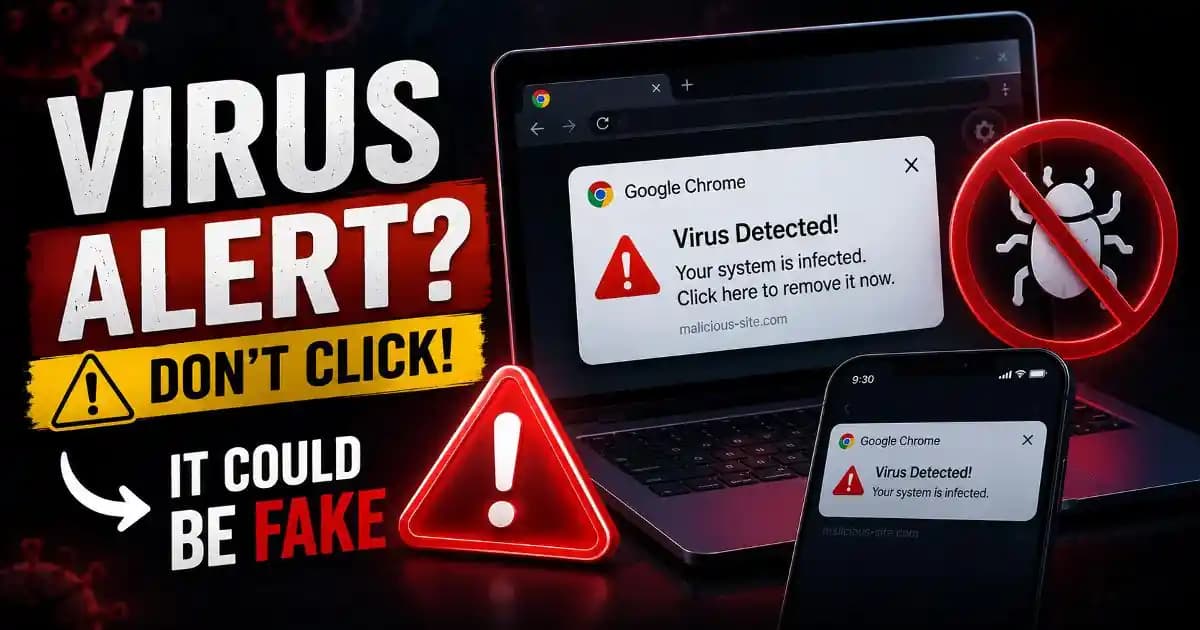
Fake virus notifications can make an ordinary Chrome notification look like an emergency security problem. A Message may claim that your computer is infected, your antivirus subscription has expired, or multiple threats have been detected, complete with alarming colors and familiar security branding. The important detail is that the notification may have come from a website you previously allowed to send browser notifications rather than from your antivirus software.
That distinction matters because clicking the warning can lead to phishing pages, unwanted downloads, fake antivirus products, subscription scams, or additional attempts to manipulate you. Google specifically warns that some websites use virus claims to persuade people to download harmful software, while Chrome can also identify and block deceptive or spam notification behavior. ([Google Help][1])
What are fake virus notifications?
A fake virus notification is a deceptive browser alert designed to look like a legitimate security warning. It can appear as a desktop notification, phone notification, browser pop-up, or message that resembles an antivirus product.
The notification itself does not necessarily mean your Device has malware. In many cases, the underlying problem is that a website has been granted permission to send notifications through Chrome. Once permission is granted, that site can send messages that appear outside the webpage and may look surprisingly similar to normal system alerts.
This is why the notification can feel more convincing than an ordinary pop-up. You might close the original website and continue working, only for another “Virus Detected” message to appear later.
Why Chrome keeps showing virus warnings
If Chrome repeatedly shows security alerts from an unfamiliar website, the site may have notification permission on your browser. Chrome allows websites to request notification access, and users can allow or block those requests. Google also says Chrome can automatically block notifications from sites it identifies as intrusive or misleading and may periodically remind users to review notification permissions. ([Google Help][2])
This creates an important difference between a browser notification and a genuine device security alert. A notification that says “Your computer is infected” is not proof that Chrome has scanned your device and found malware.
Instead of trusting the wording, look at the source. If the notification identifies an unfamiliar website, that is a strong reason to investigate the site's notification permission before doing anything else.
How fake antivirus notifications trick people
The scam usually begins with a website that asks permission to send notifications. The request may be disguised as something useful, such as “Click Allow to continue,” “Allow notifications to verify you are human,” or “Click Allow to watch the video.”
Once permission is granted, the site can send notifications later. The messages may use urgency to encourage immediate action: “Virus detected,” “Your device is at risk,” “Renew your protection now,” or “Threats found on your computer.”
The attacker does not necessarily need to infect the device at this stage. The notification itself is being used as a persuasion mechanism. The objective is to make the user click the message and continue into the next stage of the scam.
This is closely related to phishing and other social-engineering attacks. Instead of breaking through a technical security control, the scam attempts to make the user voluntarily follow a dangerous path.
What happens when you click a fake virus alert?
The destination can vary. Some campaigns redirect users to fake antivirus pages that claim to find infections and then demand payment. Others may display a fake system scan, request personal information, push unwanted software, or redirect the visitor through several advertising and tracking pages.
A particularly dangerous version can lead to a download or installation prompt. Google advises users to be cautious when websites claim that a device has a virus and pressure them to download software. Suspicious update or security messages should be closed rather than followed; if software is genuinely needed, it is safer to obtain it from the product's official source. ([Google Help][3])
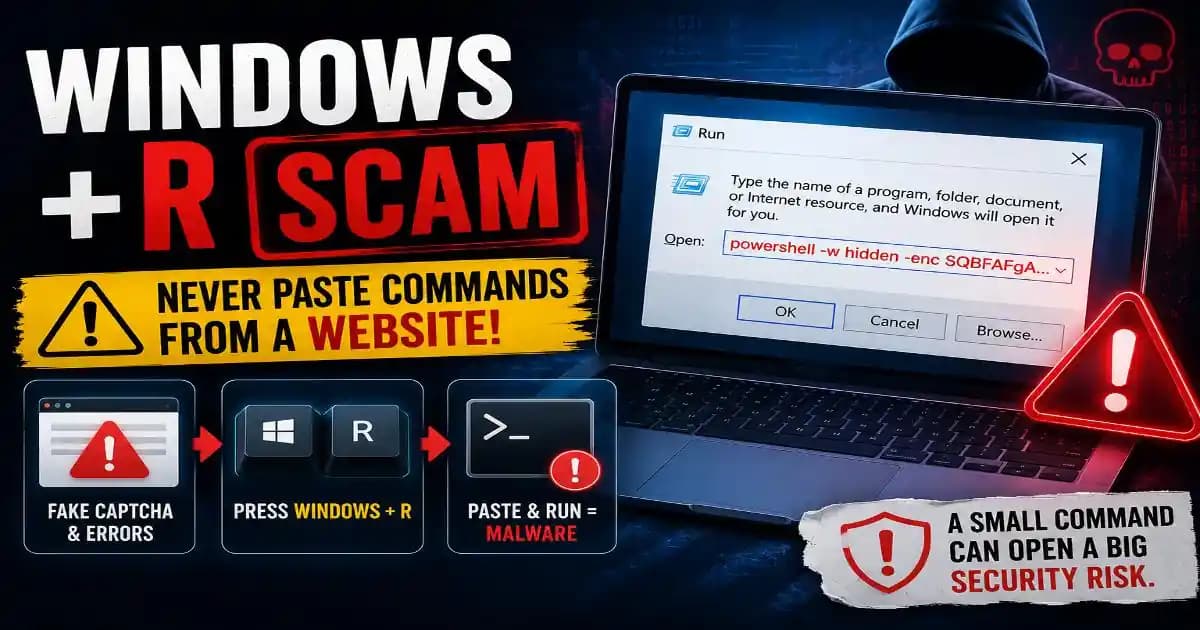
Recent fake CAPTCHA campaigns show how these techniques can overlap. The Federal Trade Commission has warned about fake CAPTCHA pages that use social engineering to persuade users to execute commands, potentially installing malware themselves. That is a different attack from notification abuse, but both rely on the same underlying idea: make an unusual action feel like a normal security procedure. ([Consumer Advice][4])
How to stop fake virus notifications in Chrome
If you are receiving repeated alerts from an unfamiliar site, the first practical step is to remove that site's notification permission. You do not need to click the notification itself to investigate it.
- Open Chrome and go to Settings.
- Open Privacy and security, then Site settings.
- Select Notifications.
- Review the sites listed as allowed to send notifications.
- Block or remove unfamiliar websites that you do not trust.
On Chrome for computers, Google provides controls for managing which websites can send notifications. You can also block a specific site through its site information controls. ([Google Help][5])
On Android, Chrome provides notification controls under Settings, Site settings, and Notifications. You can also open the affected site, access its permissions, and turn notifications off. ([Google Help][2])
What if the notifications continue after you block them?
If the alerts continue, do not assume that every notification means the same thing. First check whether multiple websites have notification permission. Removing one suspicious site may not stop alerts from another site.
You should also review Chrome's Safety Check. Google says Chrome can identify potentially unwanted notifications, unused site permissions, and potentially harmful extensions. Safety Check can therefore help identify browser-level problems that are easy to overlook. ([Google Help][6])
If unwanted pop-ups continue even after notification permissions are removed, investigate installed extensions and recently installed applications as well. Google notes that persistent unwanted pop-ups can sometimes be associated with unwanted software or malware. ([Google Help][7])
How to tell a fake virus alert from a real security warning
A genuine security product can display warnings about detected threats, but the safest way to evaluate an alert is to identify which application generated it.
If the message appears as a browser notification from an unfamiliar website, treat it differently from a warning displayed inside your installed antivirus or operating system security application. Do not let the urgency of the message decide what you do next.
Be particularly cautious when a notification tells you to call a phone number, install software, provide payment information, enter a password, disable security settings, or download an “urgent” fix. Those requests are strong indicators that you should stop and verify the situation independently.
Do not confuse browser notifications with malware
Seeing a fake virus notification does not automatically mean your computer is infected. In many cases, the notification permission itself is the immediate issue.
However, if you clicked through the alert, downloaded a file, installed software, entered credentials, or followed additional instructions, the situation deserves a closer security review. Run a reputable security scan, remove software you do not recognize, update your browser and operating system, and change important passwords if you believe credentials may have been exposed.
For important accounts, strengthen account security with unique passwords and multi-factor authentication. If you entered sensitive information into a suspicious page, do not wait for another warning before protecting the affected account.
How to prevent fake browser notification scams
The best defense is to be selective about which websites receive notification permission. A website rarely needs notification access simply because it asks for it. If you do not have a clear reason to receive alerts from a site, choose Block or deny the request.
Chrome also provides quieter notification controls and can remove permissions from some sites that have become disruptive. Regularly reviewing notification permissions is a useful part of browser security because old permissions can remain long after you stop using a website. ([Google Help][2])
Most importantly, never treat a browser notification as proof that your device has a virus. Verify the source first. If the warning comes from an unfamiliar website, close it, remove its permission, and use your normal security software to check the device if you are still concerned.
The simple rule for “virus detected” browser alerts
When Chrome suddenly tells you that your computer is infected, the safest response is not to panic and not to click. Identify where the notification came from.
If it is a website you do not recognize, revoke its notification permission. If you downloaded something or entered sensitive information, take additional security steps. And if a page tells you to run commands, install an unfamiliar application, or hand over payment or login information to “fix” the problem, stop immediately.
Fake virus notifications work because they turn uncertainty into urgency. Once you recognize that pattern, the message becomes much easier to evaluate. Your browser may be showing you an alert, but that does not mean the alert deserves your trust.
[1]: Manage warnings about unsafe sites - Computer - Google Chrome Help
[2]: Use notifications to get alerts - Android - Google Chrome Help
[3]: Remove unwanted ads, pop-ups & malware - Android - Google Chrome Help (1)
[4]: How to spot a CAPTCHA scam |Consumer Advice
[5]: Set up Chrome browser - Google Workspace Learning Center
[6]: Manage Chrome safety and security - Computer - Google Chrome Help
[7]: Block or allow pop-ups in Chrome - Android - Google Chrome Help