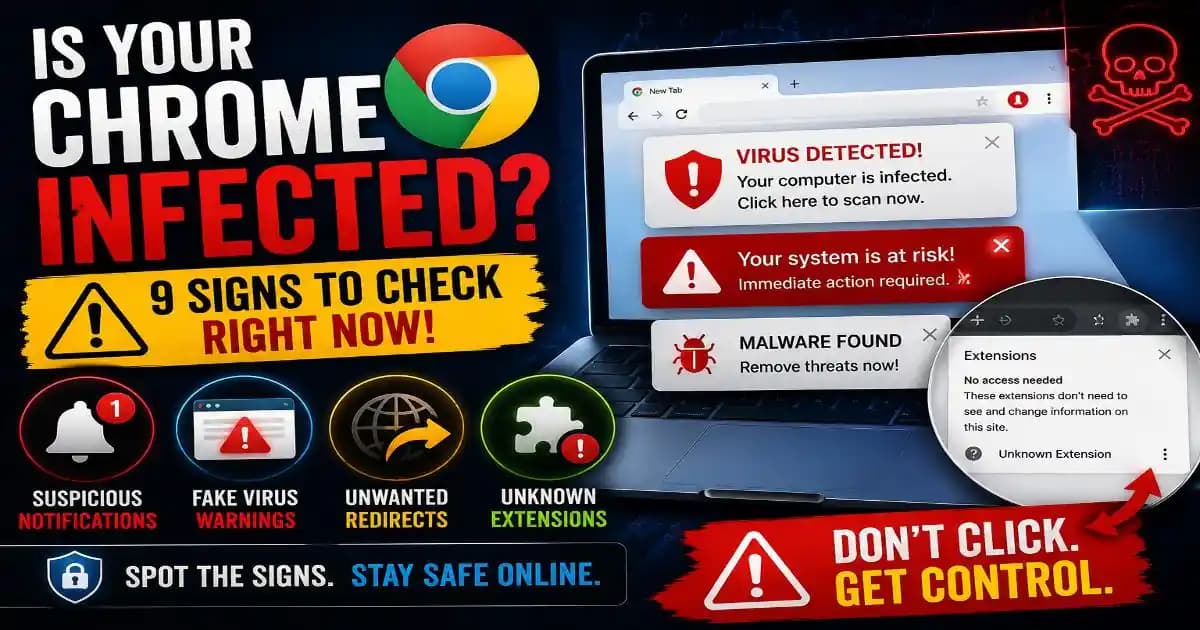
Chrome browser hijacking can feel like a malware infection when your browser suddenly shows virus warnings, opens unfamiliar pages, changes your search engine, or keeps sending notifications you never wanted. But these symptoms do not always mean Chrome itself has been hacked. In many cases, a website permission, unwanted extension, or other unwanted software is responsible.
That distinction matters because the solution depends on what actually changed. If a website has notification permission, removing that permission may solve the problem. If an extension is responsible, the extension needs to be removed. If unwanted software has changed Chrome settings, a deeper cleanup may be necessary. Google lists persistent pop-ups, unwanted extensions, redirects, changed search settings, and virus alerts among signs that unwanted software or malware may be affecting a browser. ([Google Help][1])
What does Chrome browser hijacking actually mean?
Chrome browser hijacking is a broad description for situations where your browser behaves differently from what you intended because of unwanted software, extensions, website permissions, or other changes. It does not necessarily mean an attacker has complete control of your computer.
For example, a website might convince you to allow notifications. Later, that site can send alarming Messages that look like antivirus warnings. Chrome supports website notifications by design, and users can manage which websites are allowed to send them. ([Google Help][2])
Another situation involves an unwanted extension changing your search engine or injecting advertisements into pages. More serious cases can involve software that changes browser settings without permission or redirects browsing sessions to unfamiliar websites.
1. Chrome keeps showing virus warnings
One of the most confusing symptoms is a stream of messages claiming that your computer is infected. The warning may say that several threats were detected, your antivirus has expired, or immediate action is required.
Do not assume the message is genuine simply because it appears on your desktop. Chrome can display notifications from websites that you previously allowed to send them. A deceptive website can abuse that permission to make its messages look like security alerts.
Check the source of the notification before clicking anything. If it comes from an unfamiliar website rather than your installed security software, investigate the site's notification permission first.
2. New tabs and pop-ups appear by themselves
Unexpected pop-ups are another common warning sign. A single advertisement on a website does not prove that your browser is compromised, but persistent pop-ups and new tabs that continue appearing after you leave the original site deserve attention.
Google says unwanted pop-ups and new tabs that do not go away can be a sign of unwanted software or malware, especially when combined with other browser changes. ([Google Help][1])
Start by checking Chrome's pop-up and redirect permissions. If a particular website is allowed to send them, block that permission. If the behavior continues across unrelated websites, investigate extensions and installed software as well.
3. Your homepage or search engine changed
If Chrome suddenly opens a different homepage or your searches go through an unfamiliar search engine, something has changed in your browser configuration.
This can happen because of an unwanted extension or software installed on the computer. Google specifically lists an unauthorized change to the Chrome homepage or search engine as a possible sign of unwanted software. ([Google Help][1])
Do not simply switch the search engine back and assume the problem is solved. Check installed extensions and recently installed applications too. Otherwise, the unwanted program may change the setting again.
4. You keep getting notifications from websites you barely remember visiting
This symptom is particularly easy to mistake for malware. You might suddenly see “virus detected,” “Device infected,” or “security warning” notifications even though your antivirus software has not reported anything.
Chrome allows websites to request notification permission, and Google provides controls for blocking individual websites or managing notification permissions from Chrome's Site Settings. ([Google Help][2])
If you recognize the website and no longer want its notifications, remove the permission. If you do not recognize the site at all, treat the notification as suspicious and avoid clicking it.
5. Chrome redirects you to unfamiliar websites
A browser redirect happens when a page you intended to visit suddenly sends you somewhere else. One unexpected redirect can be caused by an ordinary website or advertisement, but repeated redirects across unrelated sites are more concerning.
Google includes browsing that is redirected to unfamiliar pages or advertisements among possible signs of unwanted software or malware. ([Google Help][1])
Pay attention to when the redirect happens. If it occurs only on one website, the site itself may be responsible. If it happens across many websites, investigate extensions, browser settings, and recently installed software.
6. An extension appeared that you do not remember installing
Chrome extensions can add useful features, but they also receive permissions that can affect how you browse. An unfamiliar extension deserves immediate investigation.
Look through your installed extensions and remove anything you do not recognize or no longer need. Google recommends turning on only extensions that you trust when dealing with unwanted browser behavior. ([Google Help][1])
Be especially careful with extensions that appeared after installing another application. Some unwanted programs can modify browser settings or introduce extensions without making the change obvious.
7. Your browser becomes unusually difficult to control
If pages open without your input, settings keep changing back, advertisements appear in places they previously did not, or your browser repeatedly behaves differently after you fix it, look beyond individual pop-ups.
Chrome can automatically restore certain settings when it detects that they have been changed by unwanted programs. Google also provides a manual reset option that restores several Chrome settings to their original defaults. ([Google Help][3])
A reset can be useful, but it should not be treated as a universal malware-removal tool. If unwanted software remains on the computer, the problem may return.
8. Chrome is suddenly slow or unstable
A slower browser does not automatically mean malware. Too many tabs, heavy websites, outdated extensions, limited memory, and background applications can all affect performance.
However, unusual slowdowns combined with redirects, unwanted extensions, pop-ups, or unexplained settings changes deserve more attention. Google lists slow performance, browser problems, and other unusual behavior among possible malware symptoms. ([Google Help][1])
Look for a pattern rather than treating one symptom as proof of infection.
9. The problem keeps returning after you fix it
This is one of the most useful clues. You remove an extension, change the homepage, or block a website's notifications, but the same behavior comes back.
When unwanted changes repeatedly return, there may be another component causing them. Google notes that programs installed on a computer can change Chrome settings without the user's knowledge and recommends checking for unwanted software when browser settings continue changing. ([Google Help][3])
At that point, stop treating each symptom separately. Review extensions, installed applications, browser permissions, and security software together.
How to check whether Chrome is actually compromised
Start with the simplest checks. Open Chrome's Settings and review Site Settings, particularly Notifications, Pop-ups and redirects, and other permissions. Remove access you do not recognize.
Next, inspect your extensions. Disable or remove anything unfamiliar. Then check whether your homepage, startup pages, and search engine are still configured the way you expect.
Chrome's Safety Check can also surface certain security and permission issues. On supported versions, it can help identify potentially unwanted notifications and unused site permissions. ([Google Help][4])
If the symptoms remain, consider restoring Chrome's settings to their defaults. Google says this can restore settings changed by applications or extensions without deleting saved bookmarks or passwords. ([Google Help][3])
When browser problems may indicate real malware
Browser notifications alone do not prove that your computer contains malware. But several symptoms together deserve more attention.
If you are seeing persistent pop-ups, repeated redirects, unwanted extensions, unexplained settings changes, unusual applications, or security software problems, perform a reputable malware scan. Google specifically recommends checking for unwanted software when these symptoms appear. ([Google Help][1])
If you entered passwords or other sensitive information into a suspicious website, treat that as a separate account security issue. Change affected passwords from a trusted environment and enable multi-factor authentication where available.
What you should not do when Chrome shows a virus warning
Do not call a phone number displayed in a random browser warning. Do not install an “emergency antivirus” because a webpage told you to. Do not give a website remote access to your computer simply because it claims your browser is infected.
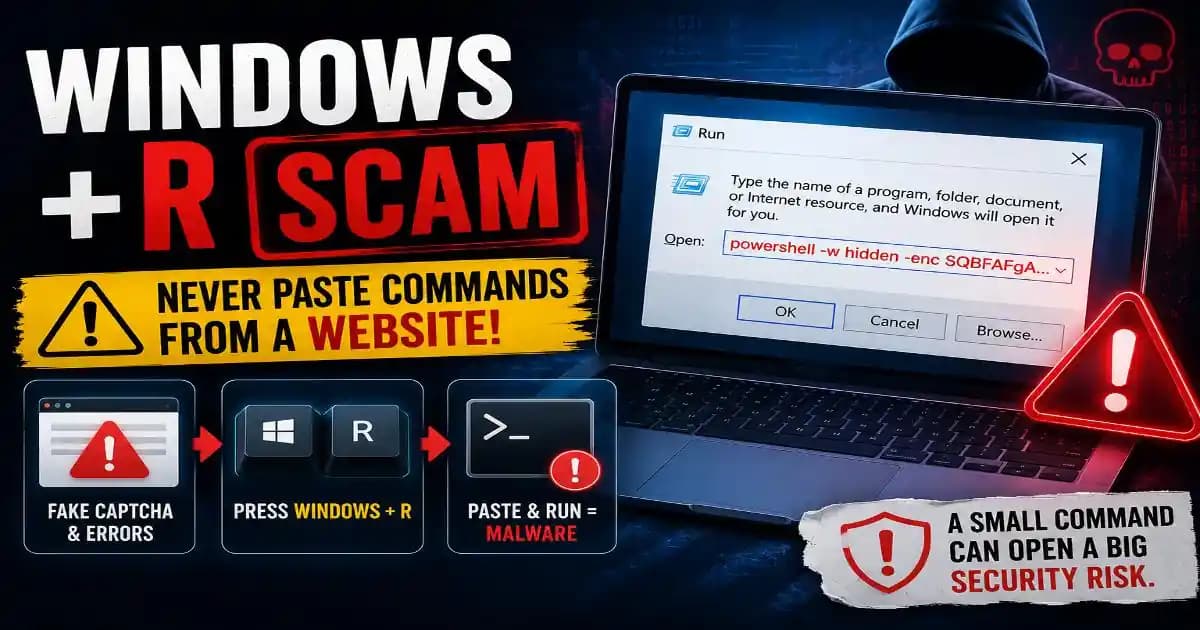
Also avoid following instructions that ask you to disable security software, install an unknown extension, or execute commands. These tactics can turn a browser scare into a much more serious security incident.
Instead, close the suspicious page and investigate through Chrome's own settings and your trusted security software. If you need a security product, obtain it from its official source rather than from a warning page.
Chrome browser hijacking is often about trust, not just malware
The biggest mistake is assuming every strange browser behavior has the same cause. A fake virus notification may simply be a website notification permission. A changed search engine may be an unwanted extension. Persistent redirects may point toward unwanted software. A combination of several symptoms can indicate something more serious.
That is why the right response is diagnostic rather than panicked. Identify what changed, find which Chrome permission, extension, or application is responsible, and then remove the cause.
If Chrome suddenly says your computer is infected, remember that the warning itself is not proof. Check the source first. Your browser may be showing you a scam alert, a website notification, or a genuine security warning and knowing the difference is the first step toward fixing the problem safely.
[1]: Remove malware or unsafe software - Computer - Google Account Help
[2]: Use notifications to get alerts - Computer - Google Chrome Help
[3]: Reset Chrome settings to default - Google Chrome Help
[4]: Manage Chrome safety and security - Android - Google Chrome Help