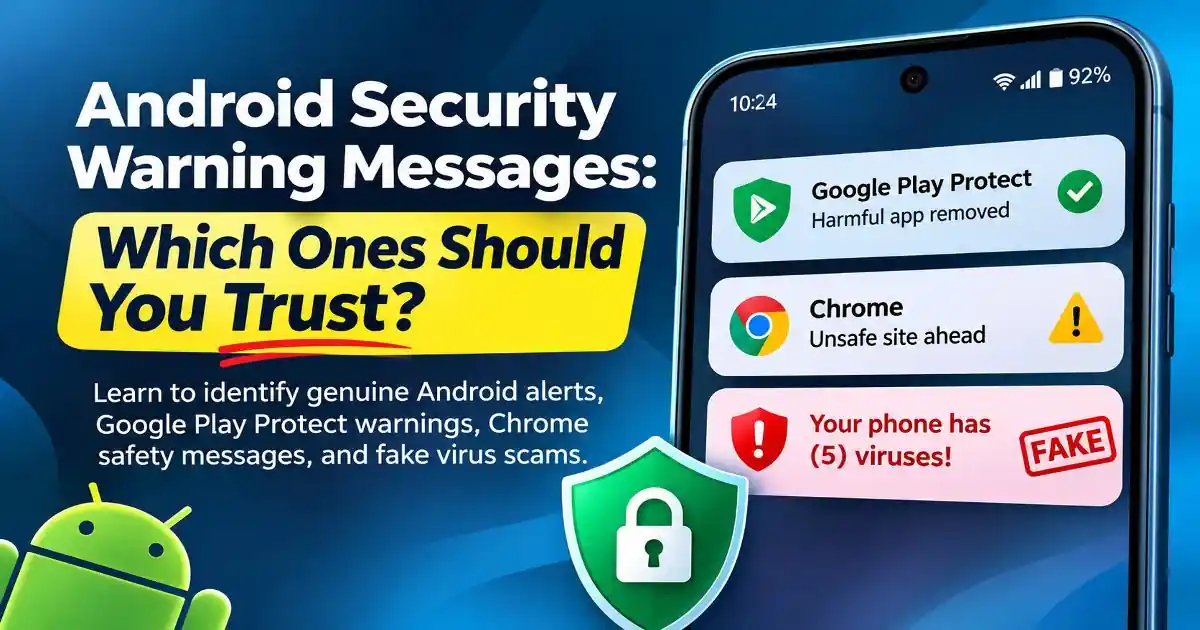
Android security warning messages can appear while installing an application, browsing a website, or checking a notification, but not every warning comes from the same security system. A Google Play Protect alert, a Chrome Safe Browsing warning, and a website claiming that your phone has several viruses are three very different situations.
This distinction matters because a genuine security warning may be protecting your device, while a fraudulent message may be trying to make you install an application, reveal personal information, or contact a fake support service. Knowing where an alert originates is more useful than judging it by its colors, logos, or alarming language.
Android includes several security mechanisms that work at different levels. Google Play Protect checks applications, Chrome helps identify dangerous websites, and Android provides controls for application permissions and device security. Understanding their roles makes unfamiliar warnings easier to evaluate.
Which Android Security Warning Messages Are Genuine?
Google Play Protect warnings
Google Play Protect is one of Android's built-in application security systems. It checks applications before installation from Google Play and periodically scans applications already installed on a device. It can also examine applications obtained from outside the Play Store.
When Play Protect identifies potentially harmful behavior, it may display a warning, disable an application, or remove it. The exact message depends on the detected behavior. Warnings can concern spyware, phishing, billing fraud, harmful downloads, or applications attempting to misuse sensitive permissions.
Another legitimate message may recommend scanning an unfamiliar application before installation. This does not automatically mean the application contains malware. It means Google Play Protect has not previously examined that application and is requesting a security check.
You can independently inspect the protection status by opening Google Play Store, selecting your profile picture, and choosing Play Protect. This is a safer verification method than following an unfamiliar button inside a suspicious message.
Chrome Safe Browsing warnings
Google Chrome can display warnings when a website appears to contain phishing, social engineering, malware, or unwanted software. Messages such as Fake site ahead indicate that Chrome has identified a potentially dangerous destination.
These warnings are connected to the website being visited rather than necessarily indicating that the Android phone itself is infected. For example, a fraudulent banking website may trigger a browser warning because it attempts to imitate a legitimate service.
When Chrome displays an unsafe-site warning, returning to safety is generally the sensible choice. If you believe a legitimate website has been incorrectly identified, investigate the domain independently instead of immediately bypassing the warning.
When an Android Security Alert Is Actually a Scam
A common source of confusion is the fake virus notification displayed inside a browser. A website may suddenly show a red warning screen, a countdown, a flashing virus message, or a claim that personal photographs and banking information are at risk.
Some websites also request permission to send browser notifications. After permission is granted, they may deliver repeated messages that appear on the phone's notification panel. The notifications can use security-related language or imitate familiar technology brands.
However, a website notification is not the same as an operating-system security alert. A webpage cannot establish that your entire phone is infected simply by displaying a warning. Similarly, a message asking you to install an unfamiliar antivirus application or call a displayed telephone number should be treated with caution.
These tactics are examples of scareware and social engineering. Their purpose is to influence a user's decision through urgency rather than provide reliable information about the device.
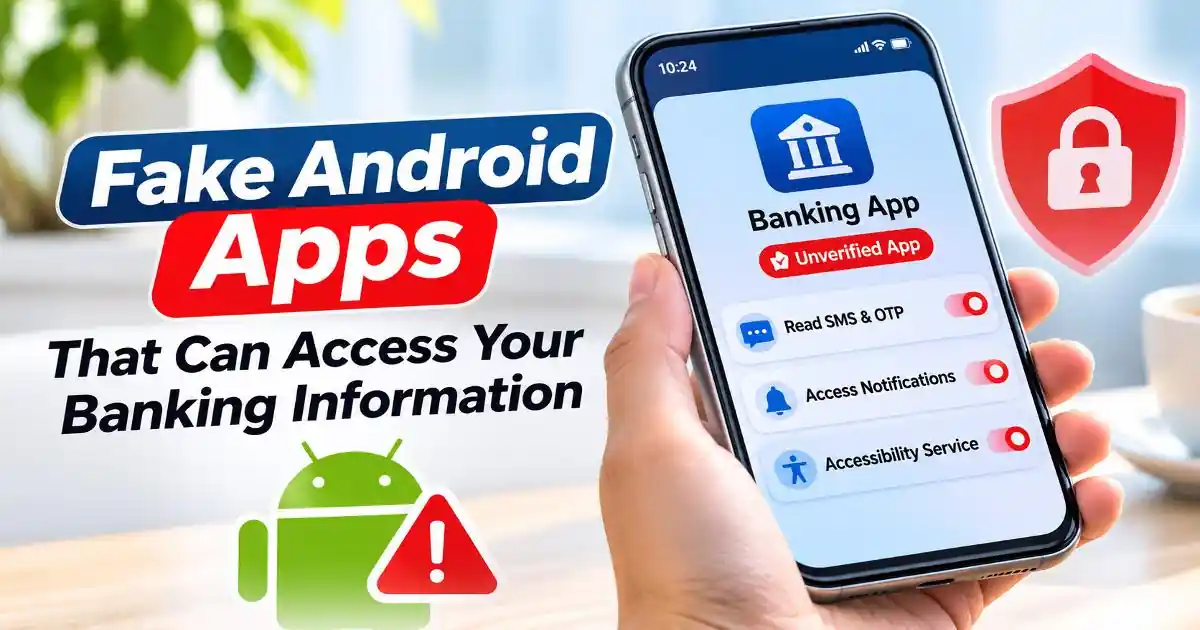
For a closer explanation of this particular threat, see our coverage of fake virus notifications. Users should also understand how fake Android apps can misuse permissions to access sensitive information.
Why Different Android Warnings Look Similar
Android security alerts are not generated by one universal system. Google Play Protect, Chrome, application developers, network security services, and device manufacturers can all produce notifications for different reasons.
A Samsung phone, for example, may present certain security information through Samsung's own device-management interfaces, while another manufacturer may use different menu names and notification designs. The Android version and installed applications can also affect the appearance of alerts.
This is why appearance alone is not a reliable authentication method. A fraudulent webpage can copy the visual design of a familiar Android warning. A notification containing the Google logo is not automatically an official Google notification.
The more reliable approach is to identify which application or system generated the message. Check the notification's application information, open the relevant security feature directly, and compare the warning with official documentation.
How to Check an Android Security Warning Safely
When an unfamiliar security message appears, avoid immediately tapping its action buttons. Instead, identify its origin and inspect the relevant security settings independently.
- Identify the source: Check whether the alert comes from Google Play Store, Chrome, Android system settings, or an unfamiliar application. On supported Android versions, you can inspect notification details to identify the sending application.
- Open Play Protect directly: Open Google Play Store, tap your profile picture, and select Play Protect. Review the scan results and any application warnings displayed there.
- Review suspicious browser notifications: Open Chrome settings, navigate to Site settings and Notifications, and examine websites that have permission to send alerts. Remove notification access from unfamiliar or unwanted websites.
- Inspect application permissions: Open Android Settings and review the permissions granted to unfamiliar applications. Pay particular attention to SMS, contacts, notifications, and Accessibility Services when an application has no clear reason to access them.
- Update your device: Install available Android security updates and application updates through trusted sources. If an alert remains unexplained, consult the relevant platform's official support documentation.
Menu names can vary between manufacturers and Android versions, so the exact navigation may differ on Samsung, Realme, Xiaomi, Motorola, and other devices.
What If You Have Already Clicked a Suspicious Warning?
Clicking a suspicious notification does not automatically mean that your phone is infected. The next step depends on what happened after opening it.
If a browser page opened, close the tab without downloading anything or entering personal information. If the website was allowed to send notifications, remove its permission through browser settings. You can also review recent browser activity and clear unwanted site data.
If you installed an application, review its permissions and remove it if it is untrusted. Run a Google Play Protect scan and check for unfamiliar Accessibility Services or device administrator applications.
If you entered a password, banking credential, or verification code, secure the affected account using a trusted device. Contact your bank immediately if financial information may have been exposed or an unauthorized transaction has occurred.
In India, suspected financial cyber fraud can be reported through the national cybercrime helpline at 1930 or the official National Cyber Crime Reporting Portal. Preserve relevant messages and transaction information.
Why Google Play Protect Should Remain Enabled
Some users consider disabling security warnings when they interrupt an application installation. However, turning off Google Play Protect also removes an important layer of Android application protection.
Google recommends keeping its scanning feature enabled. It can identify potentially harmful applications, warn about suspicious software, and take protective action when certain threats are detected.
It is important to understand that no scanning system guarantees detection of every malicious application. A clean scan is useful information, not absolute proof that an application is safe.
Good mobile security therefore depends on more than one feature. Trusted download sources, sensible permission decisions, software updates, account protection, and awareness of phishing attempts all contribute to safer Android usage.
Understanding Android Warnings Is Better Than Ignoring Them
Not every Android security warning is a reason to panic, and not every warning should be dismissed. A genuine Play Protect alert can identify a harmful application, while a Chrome warning can prevent a user from visiting a phishing website. A fake browser notification, on the other hand, may be attempting to create a problem that does not exist.
The most important habit is to verify the source before taking action. Open security settings independently, check the application responsible for a notification, and avoid installing software or sharing information because a webpage demands immediate attention.
Android provides several useful security controls, but users still play an important role in deciding which applications to trust and what permissions to grant. Understanding the difference between a real system warning and a deceptive message makes those decisions considerably easier.
Official Sources and Further Reading
- Google Android Help: Use Google Play Protect to help keep your apps safe and your data private. https://support.google.com/googleplay/answer/2812853
- Google Chrome Help: Manage warnings about unsafe sites. https://support.google.com/chrome/answer/99020
- Google for Developers: Google Play Protect Warning Strings. https://developers.google.com/android/play-protect/warning-strings
- Google for Developers: Guidance for Google Play Protect Warnings. https://developers.google.com/android/play-protect/warning-dev-guidance
- CERT-In: Sophisticated RTO/eChallan-themed Android Malware Campaign, March 17, 2026. https://www.cert-in.org.in/s2cMainServlet?CACODE=CICA-2026-3492&pageid=PUBADV01
- Cyber Swachhta Kendra: SpyMax Android Malware. https://www.csk.gov.in/alerts/SpyMax_android_malware.html
Frequently Asked Questions
How do I know if an Android security warning is real?
Identify which application generated the notification. Verify Play Protect alerts through the Google Play Store and browser warnings through Chrome. Do not rely on logos or appearance alone.
Does a Google Play Protect warning always mean my phone has a virus?
Not necessarily. Some warnings indicate an unfamiliar application needs scanning or that an application requests sensitive permissions. Read the actual warning before deciding what to do.
Are virus warnings displayed on websites real?
Many unexpected website virus warnings are scareware. A webpage cannot reliably diagnose your entire phone merely by displaying a pop-up message.
Should I disable Google Play Protect if it blocks an application?
No. Keep Play Protect enabled. Investigate the application's source and warning details before considering any installation. Use official developer documentation if you believe the detection is incorrect.
Can Android security warnings appear differently on different phones?
Yes. Android versions, manufacturers, and installed security applications can change notification wording and settings navigation. Verify the underlying source rather than relying only on appearance.