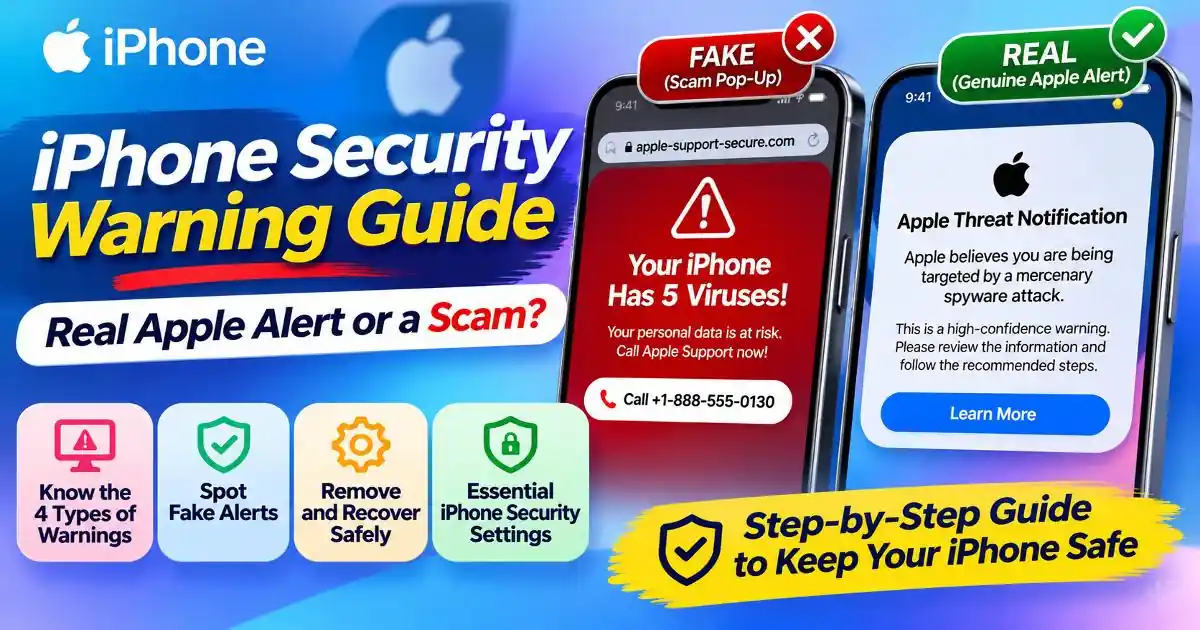
An unexpected iPhone security warning can be alarming. A message might claim that your iPhone is infected, that hackers have accessed your Apple Account, or that your personal information is at risk. Some warnings are designed to frighten users into calling a fake support number, installing an app, or sharing sensitive information.
However, not every security alert on an iPhone is a scam. Apple also sends genuine threat notifications to people it believes have been individually targeted by sophisticated spyware. iOS can display a separate malware warning when it identifies a dangerous third-party app.
The important thing is to understand which type of warning you are seeing before taking action. This guide explains how to distinguish fake website pop-ups from genuine Apple alerts, what to do if you have interacted with a suspicious message, and which iPhone settings can help protect your device.
What Does an iPhone Security Warning Mean?
An iPhone security warning is a message that claims there is a problem with your device, an installed app, your browsing session, or your Apple Account. The source of the warning matters more than its wording or appearance.
For example, a webpage can display a convincing message claiming that your iPhone has multiple viruses. That message does not automatically mean iOS has detected malware. On the other hand, an alert generated by iOS that identifies a particular third-party app as malware is a genuine device warning and should be taken seriously.
Before following any instructions, identify where the message appeared: inside Safari, in an iPhone system notification, in Settings, or on your Apple Account page.
Four Types of iPhone Security Warnings You Should Know
1. Fake Apple Security Pop-Ups in Safari
These are among the most common warnings people encounter while browsing the internet. A webpage may display messages such as:
- Your iPhone has been infected with viruses.
- Apple Security Alert: Immediate action required.
- Your personal data is being accessed by hackers.
- Your iPhone is damaged. Install this security application now.
These messages are usually fraudulent advertisements or phishing attempts. Their purpose is to create panic and persuade you to call a displayed phone number, visit a fake website, provide payment details, or download unwanted software.
A website cannot establish that your iPhone has a virus simply by displaying a frightening pop-up. Do not call the number, tap its download button, or enter your Apple Account details. Close the tab or navigate away from the page without interacting with the warning.
2. Genuine Apple Threat Notifications
Apple Threat Notifications are different from ordinary browser pop-ups. They are high-confidence alerts intended for people Apple believes may have been individually targeted by mercenary spyware. Such attacks are highly sophisticated and generally focus on a very small number of specific individuals.
Apple says a genuine threat notification can appear on the iPhone Lock Screen and in Settings. Apple also sends an email to addresses associated with the user's Apple Account, and displays a notification banner at the top of the account page after the user signs in at account.apple.com.
Receiving this notification means Apple has detected activity consistent with a targeted spyware attack. It does not, by itself, prove that spyware successfully compromised the device or that all personal information has been accessed.
To verify the notification, open a browser yourself and type account.apple.com into the address bar. Sign in and check whether the threat notification appears at the top of the page. Do not use a link supplied in an unexpected email or message.
Apple's genuine threat notifications never ask you to click links, open attachments, install apps or configuration profiles, or share your Apple Account password or verification code by email or phone. If you receive one, follow Apple's guidance and consider contacting a specialist digital security organisation for assistance.
3. iOS Malware App Warnings
iOS can also display a genuine warning when it identifies a particular installed third-party app as malware. In this situation, the iPhone prevents the app from opening and recommends that you delete it.
This is not the same as a random website claiming that your entire iPhone is infected. The warning relates to a specific app that Apple's security checks have identified as dangerous.
Follow the alert's recommendation and select Delete App. You can also open Settings, select the relevant app if it is listed, and review the information provided about the warning. Avoid choosing an option to re-enable an app that iOS has identified as malware unless you fully understand and accept the risk.
4. Apple Account Security Alerts
Apple Account security messages may relate to account sign-ins, password changes, account recovery, or other activity. An unexpected sign-in notification or verification code that you did not request deserves attention, but it does not automatically prove that someone has gained access.
Never approve a sign-in request that you did not initiate. Do not share a verification code with anyone claiming to be Apple Support. Instead, open your iPhone Settings or independently visit account.apple.com to review your account information and connected devices.
Real Apple Security Alert vs Fake iPhone Pop-Up
| Warning type | Where it appears | What you should do |
|---|---|---|
| Fake security pop-up | Inside a website or browser tab | Do not interact. Close the tab or navigate away. |
| Apple Threat Notification | Lock Screen, Settings, email and Apple Account page | Verify independently at account.apple.com and follow Apple's security guidance. |
| iOS malware app alert | iOS warning identifying a particular app | Delete the identified app and do not re-enable it casually. |
| Apple Account security alert | Account-related notification or sign-in prompt | Check account activity and devices through Apple's official settings. |
Use this comparison as a starting point, not as a substitute for verification. Scammers can imitate Apple's colours, logos, and wording. A convincing design does not prove that a message is genuine.
How to Identify a Fake iPhone Security Warning
Look for these common warning signs before following any instruction:
- Extreme urgency: The message threatens immediate data loss, account deletion, or permanent device damage unless you act within seconds.
- Unexpected phone numbers: A webpage tells you to call a technical support number to remove viruses or unlock your iPhone.
- Unrequested downloads: The warning asks you to install a security app, certificate, configuration profile, or update from an unfamiliar website.
- Requests for secret information: Someone asks for your Apple Account password, iPhone passcode, or two-factor authentication code.
- Unusual payment demands: The supposed support agent asks for gift cards, cryptocurrency, or an immediate payment to repair your device.
- Suspicious links: A message directs you to a website that imitates Apple's sign-in page but does not use an official Apple domain.
Apple warns users about misleading pop-ups, phishing messages, and fake support calls. Apple representatives will not ask you to provide your password, device passcode, or two-factor authentication code through a website or an unsolicited support interaction.
How to Remove a Fake iPhone Security Warning
If a suspicious warning appears while browsing, you usually do not need to install another application or reset your iPhone. Start with these steps.
- Do not tap the warning. Avoid its buttons, links, phone numbers, and download instructions.
- Leave the webpage. Navigate to a trusted website using the Safari address bar. If the pop-up blocks the screen, close the browser tab or window carefully. Avoid buttons inside the suspicious message because they may be fake close controls.
- Enable Safari protection. Open Settings, tap Apps, select Safari, and turn on Block Pop-ups and Fraudulent Website Warning.
- Clear browsing data if necessary. Open Settings, tap Apps, select Safari, and use Clear History and Website Data if suspicious pages continue appearing. Menu wording can vary by iOS version.
- Update iOS. Open Settings, select General, and tap Software Update. Install an available update after backing up your important data.
Clearing Safari data can remove website history and related browsing data, but it does not repair a compromised Apple Account or automatically remove an installed configuration profile. If you shared credentials or installed something, follow the relevant recovery steps below.
What If You Already Clicked an iPhone Security Warning?
Your next step depends on what happened after you interacted with the message. Simply opening a suspicious webpage is not the same as entering your password or installing a profile.
If You Only Viewed the Pop-Up
Close the webpage or tab without interacting further. Do not call any number shown in the warning. Enable Safari's pop-up and fraudulent website protections, and keep iOS updated. Merely seeing a fake warning does not establish that your iPhone has been infected.
If You Clicked a Suspicious Link
Close the page and do not enter information or download anything it offers. If you entered a password, payment details, or other sensitive information, treat those details as potentially exposed and take the appropriate account-protection steps. Watch for unexpected sign-in prompts and account notifications.
If You Installed an Unknown App or Configuration Profile
Review recently installed apps and remove anything you do not recognise or trust. To inspect configuration profiles, open Settings > General > VPN & Device Management. Review any listed profiles and investigate unfamiliar entries before removing them.
Profiles may be legitimately installed by an employer, school, or organisation to configure network access and other services. Do not remove a work or school profile without checking with the relevant administrator. Removing a profile can also remove its associated settings, apps, and data.
If You Entered Your Apple Account Password
Change your Apple Account password immediately through Apple's official account settings or directly in your iPhone Settings. Review the devices connected to your account and remove any device you do not recognise. Confirm that two-factor authentication is enabled, and do not approve unexpected sign-in requests.
If you reused the same password on other websites, change it there too. Use a different, strong password for each account.
If You Shared a Verification Code or Gave Someone Remote Access
End the call or communication immediately. Do not follow further instructions from the person who contacted you. Change your Apple Account password, review trusted devices and account details, and contact Apple Support through an independently opened official channel.
If you shared banking details, card information, or UPI credentials, contact your bank immediately using its official number or app. In India, report suspected cyber financial fraud promptly through the National Cyber Crime Reporting Portal or call 1930. Preserve messages, transaction details, phone numbers, and screenshots as evidence.
iPhone Security Settings You Should Check
1. Turn On Safari's Fraudulent Website Warning
Go to Settings > Apps > Safari. Enable Block Pop-ups and Fraudulent Website Warning. These settings help reduce unwanted pop-ups and warn you when Safari detects a suspected fraudulent website.
2. Review Safety Check
Open Settings > Privacy & Security > Safety Check. This feature lets you review information shared with people and apps, check devices connected to your Apple Account, and change certain account and privacy settings. Use Manage Sharing & Access to review sharing arrangements. Emergency Reset is available when you need to stop sharing information quickly.
3. Check VPN and Device Management Profiles
Open Settings > General > VPN & Device Management. Review the profiles installed on your iPhone. If you find an unfamiliar profile, identify who installed it and what it controls before deciding whether to remove it. Legitimate organisation-managed devices may require these profiles.
4. Review Devices Connected to Your Apple Account
Open Settings and tap your name to review the devices associated with your Apple Account. Check that you recognise each device. If an unfamiliar device appears, investigate it and remove it if you confirm that it does not belong to you.
5. Keep iOS Updated
Go to Settings > General > Software Update and install available updates. Software updates can include important security fixes. Back up your device before updating, and use Apple's built-in update process rather than links from pop-up messages.
6. Understand When Lockdown Mode Is Appropriate
Lockdown Mode is an optional, highly restrictive security setting designed for the very small number of people who may face sophisticated targeted cyberattacks. It is not a routine solution for a fake Safari warning or an ordinary suspicious advertisement. If Apple sends you a genuine threat notification, follow its specific recommendations and consider seeking expert assistance before changing security settings.
Apple Threat Notifications and India: What Users Should Know
Apple Threat Notifications are relevant to users in India as well as other countries. India's national cybersecurity agency, CERT-In, has previously issued an advisory about reports of Apple Threat Notifications and recommended that affected users follow Apple's security guidance, install relevant software updates, and consider additional safeguards such as Lockdown Mode.
If you receive a genuine targeted-threat notification, do not dismiss it as an ordinary browser scam. Verify it through account.apple.com, preserve the notification, follow Apple's recommendations, and seek specialist help if necessary. CERT-In advisories and official Apple guidance should take priority over instructions from unknown callers or websites.
For suspected financial cyber fraud in India, contact your bank immediately and report the incident through cybercrime.gov.in or the national helpline 1930. These reporting channels are for cybercrime incidents; they do not replace Apple's technical support for device or account issues.
Frequently Asked Questions
Is an iPhone security warning always real?
No. Many warnings shown inside websites are fake advertisements or phishing attempts. However, Apple also issues genuine threat notifications, and iOS can warn users about specific apps identified as malware. Always identify the source before acting.
Can a website detect a virus on my iPhone?
A webpage displaying a warning does not prove that your iPhone is infected. Fake websites often use alarming messages to persuade visitors to download software, call a number, or share personal information.
How do I know if an Apple Threat Notification is genuine?
Open a browser independently and type account.apple.com into the address bar. Sign in and check whether Apple displays a threat notification at the top of your account page. Genuine notifications do not ask you to install an app or share your password or verification code.
Does receiving an Apple Threat Notification mean my iPhone is hacked?
It means Apple has detected high-confidence activity consistent with an attempt to target you with mercenary spyware. It should be taken seriously, but the notification alone does not prove that the attack successfully compromised your device.
Should I install an antivirus app after seeing an iPhone virus warning?
Do not install an app simply because a pop-up recommends it. First determine whether the warning came from a website or from iOS. Use Apple's built-in security guidance and download apps only from sources you trust.
Will clearing Safari history remove an iPhone security warning?
Clearing Safari history and website data may help remove persistent website-related data or browsing issues. It does not change a compromised Apple Account password, remove every installed profile, or prove that a security incident has been resolved.
What should I do if I shared my Apple verification code?
Stop communicating with the person who requested it. Change your Apple Account password, review connected devices and account details, and contact Apple through its official support channels. If financial information was also shared, contact your bank immediately.
Can I remove an unknown profile from my iPhone?
You can review profiles under Settings > General > VPN & Device Management. Remove a profile only after confirming that it is unfamiliar and not required by your employer, school, or another legitimate organisation.
Official Sources and Further Reading
- Apple: Recognise and avoid social engineering schemes, phishing messages, and scams guidance on fake security pop-ups, suspicious calls, and compromised account credentials.
- Apple: About Apple Threat Notifications and protecting against mercenary spyware how genuine notifications are delivered and verified.
- Apple: What to do when iPhone warns that an app contains malware instructions for handling a specific app malware alert.
- Apple: Block pop-up ads and windows in Safari Safari settings and advice for suspicious pop-ups.
- Apple: Safety Check for iPhone reviewing information shared with people, apps, and devices.
- Apple: Install or remove configuration profiles on iPhone understanding device profiles and their settings.
- Apple: Update your iPhone or iPad official software update instructions.
- CERT-In Advisory CIAD-2025-0048 Indian cybersecurity guidance concerning Apple Threat Notifications.
Final Thoughts
An iPhone security warning should never be judged by its design, logo, or frightening language alone. A fake Safari pop-up, a genuine Apple Threat Notification, an iOS malware alert, and an Apple Account security message are different situations that require different responses.
Verify important alerts through Apple's official channels, never share passwords or verification codes, and avoid installing software or profiles recommended by unexpected pop-ups. If you have already interacted with a suspicious message, focus on what information or access you actually shared. Taking the right steps quickly can help protect your device, accounts, and personal information.