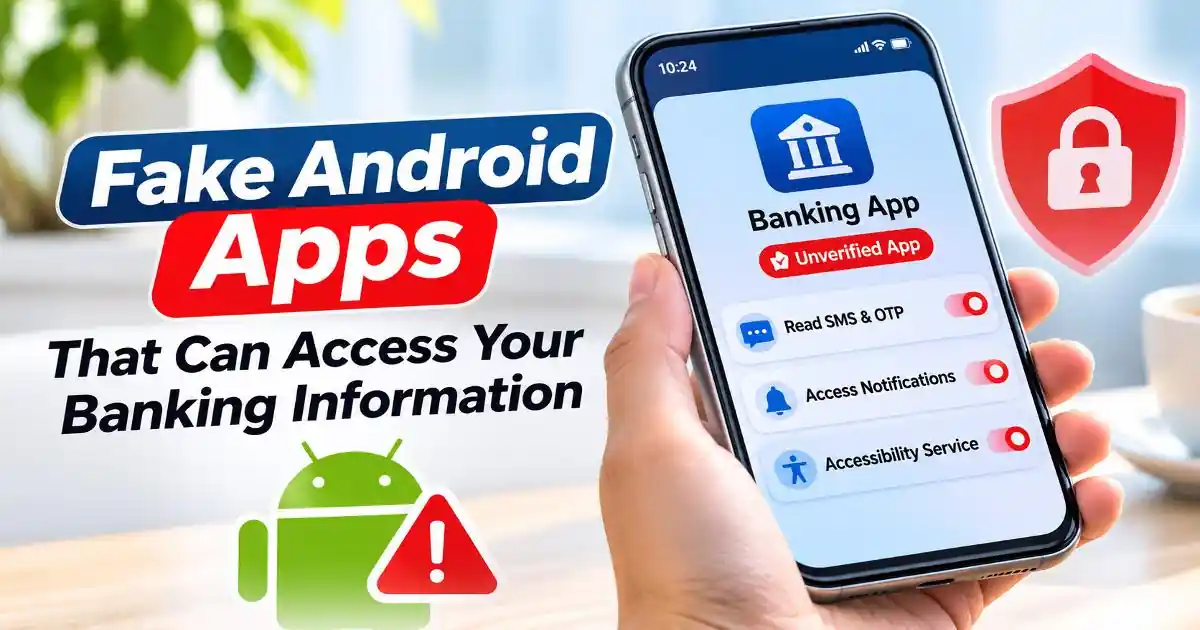
Fake Android apps can make a smartphone user believe they are installing a legitimate banking service, government application or payment tool. The danger often begins with an ordinary-looking download link shared through WhatsApp, SMS or a website. Once installed, a malicious application may request access to sensitive parts of the phone, including messages, notifications and Accessibility Services.
For Indian smartphone users, this threat deserves particular attention because banking, UPI payments, OTP verification and financial notifications are closely connected to everyday mobile activity. A fraudulent application does not necessarily need to look suspicious. It may copy a familiar bank logo, reproduce a government service interface or promise a financial benefit to encourage installation.
On August 21, 2026, Reuters reported that Indian authorities had directed Google to remove Firebase-hosted websites and databases allegedly connected to malware distribution, bank impersonation and financial information theft. The reported campaigns included fake applications impersonating major banks and services. Some schemes encouraged users to download applications through fraudulent websites before collecting information from their devices. The Reuters investigation illustrates how legitimate development infrastructure can be misused by criminals.
Why Fake Android Apps Are Becoming a Banking Security Concern
Many people recognize a fake banking website, but an installed application can create a different level of risk. Instead of simply asking someone to enter information on a webpage, malicious software may request device permissions that allow it to interact with sensitive information.
Attackers frequently use familiar names and visual designs to build trust. A fake application might claim to provide bank reward points, credit card upgrades, account verification, government benefits or an urgent KYC update.
In one reported pattern, victims receive a message encouraging them to download an APK file to claim a benefit or resolve an account issue. The application may resemble a legitimate service but communicate with infrastructure controlled by the attacker.
Google Firebase is one example of a legitimate cloud development platform that has reportedly been abused in these campaigns. Firebase itself is not malware. Developers use it for application development, hosting and data services. The security problem arises when criminals misuse legitimate infrastructure to collect information from infected devices.
How Fake Banking Apps Access Sensitive Information
Android applications operate through a permission system. When an app requests access to a feature such as SMS, contacts, location or the microphone, Android provides controls that allow users to approve or deny supported permissions.
The problem begins when users grant access without considering whether the application actually needs it. A genuine banking application may require certain permissions for specific features, but an unrelated reward application or document viewer generally has little reason to access banking notifications or manage phone calls.
SMS and OTP access
Some malicious applications attempt to access incoming SMS messages. If the required access is granted and the device configuration permits it, malware may collect verification messages containing sensitive information.
This is particularly concerning when users receive banking OTPs through SMS. Criminals may attempt to use intercepted messages as part of a wider account takeover or unauthorized transaction attempt. An OTP should never be shared with another person, even if they claim to represent a bank.
Notification access
Notification access can expose information displayed by other applications. Depending on the granted access and Android implementation, an application may read notification content containing transaction alerts, account information or verification messages.
This explains why a seemingly harmless application requesting notification access deserves closer inspection. A utility that does not need to manage notifications should not automatically receive that privilege.
Accessibility Services abuse
Accessibility Services are designed to help people interact with Android devices, including users who need screen-reading, interface navigation or other assistive features.
However, malicious applications can abuse Accessibility capabilities when users enable an untrusted service. Depending on the service configuration and Android protections, this access can allow software to inspect interface information, interact with visible controls and automate certain actions.
Banking malware may attempt to exploit these capabilities to observe financial application activity, manipulate screens or assist with unauthorized operations. CERT-In's advisory on mobile-based malware explains how banking Trojans have abused Android Accessibility Services and other device capabilities. The CERT-In mobile malware advisory provides technical context.
Screen overlays and fake banking interfaces
Another technique involves displaying a fraudulent screen that resembles a legitimate banking login interface. A user may believe they are interacting with their actual banking application when they are entering information into an attacker-controlled screen.
Some malware families combine several techniques, including screen overlays, notification monitoring and remote interaction. The exact capabilities depend on the malware, permissions granted, Android version and device protections.
Warning Signs of Fake Android Apps
Not every application requesting permissions is malicious. The more useful approach is to compare what an app promises to do with the information and device access it requests.
For example, an application advertising a government payment benefit should raise questions if it requests unrestricted access to SMS messages, phone calls and Accessibility Services without a convincing explanation.
- Unexpected APK downloads: A bank, government department or payment provider directs you to install an APK through an unsolicited WhatsApp message or SMS.
- Unnecessary permissions: A simple rewards or information application requests access to SMS, contacts, notifications or phone functions without a clear reason.
- Accessibility activation requests: An unfamiliar application asks you to enable an Accessibility Service to complete a registration or verification process.
- Unfamiliar developer information: The developer name, official website or application identity does not match the organization being represented.
- Unexpected device behavior: You notice unfamiliar applications, unusual notification activity, unexpected permission changes or banking alerts you did not initiate.
- Pressure to act immediately: The application claims that your bank account, government benefit or credit card will be blocked unless you install it immediately.
One warning sign does not prove that a device is infected. However, multiple unexplained changes following an application installation deserve investigation.
How to Check Whether an Android App Is Safe
Before installing a banking or financial application, begin with the organization's official website. Follow its application download instructions rather than trusting links received through messages or advertisements.
On Google Play, check the developer identity, application description, privacy information, update history and available reviews. Look for inconsistencies between the application and the organization it claims to represent. A familiar logo or a large download count is not sufficient proof of legitimacy.
Google Play Protect provides another layer of protection. It checks applications during installation and periodically scans installed apps for potentially harmful behavior. It can warn users, disable certain harmful applications or remove them when threats are detected.
To check its status:
- Open the Google Play Store.
- Tap your profile picture.
- Select Play Protect.
- Open Play Protect settings.
- Make sure Scan apps with Play Protect is enabled.
- If you install applications from outside Google Play, consider enabling Improve harmful app detection.
Google explains these protections in its official Play Protect safety guide. Remember that a clean scan does not guarantee that every possible malicious application or behavior will be detected.
How to Review Dangerous Android App Permissions
Android provides a permission management interface where users can review which applications have access to sensitive device features. The exact menu names may differ between Samsung, Realme, Xiaomi, Motorola, OnePlus and other Android manufacturers.
Start by opening Settings and selecting Apps or App Management. Choose an application and open Permissions. Review access to SMS, contacts, phone, microphone, camera, location and other sensitive features.
You can also use Permission Manager, usually available under Security and Privacy or Privacy settings, to see which applications have access to a particular permission category.
Pay particular attention to special access settings. Review Accessibility Services, notification access, device administrator applications and other powerful access options where available. These settings are separate from ordinary application permissions.
If an unfamiliar application has powerful access that does not match its purpose, investigate it before continuing to use the app. Revoke unnecessary permissions and uninstall applications you do not trust.
Google provides additional instructions in its Android app permissions guide.
What to Do If You Installed a Suspicious Banking App
If you suspect that an application is collecting financial information, stop using it and avoid entering additional passwords, OTPs or payment information. If you believe the device is actively compromised, disconnect it from mobile data and Wi-Fi while arranging assistance from your bank or security support team.
Open Android Settings and review the installed application list. Identify the application you installed shortly before the suspicious activity began. If it has enabled Accessibility Services or device administrator access, review and disable those privileges if it is safe to do so and your device allows it. Then uninstall the suspicious application.
If the application resists removal or repeatedly reappears, do not keep interacting with it. Seek help from a trusted device support professional. A carefully prepared factory reset may be necessary in some serious cases.
Run Google Play Protect and install available Android security updates. From a separate trusted device, change passwords for accounts that may have been exposed. Contact your bank immediately if you entered financial credentials, shared an OTP or noticed an unauthorized transaction.
For UPI-related concerns, remember that your UPI PIN is used to authorize payments. NPCI explicitly advises customers not to share their UPI PIN with anyone, including people claiming to represent a bank or payment service. Visit the NPCI UPI frequently asked questions for official payment guidance.
If money has been lost through suspected cyber fraud in India, report it promptly through the national cybercrime helpline 1930 or the National Cyber Crime Reporting Portal. Preserve transaction references, suspicious messages, application details and other relevant evidence.
Why App Security Requires More Than Checking the Play Store
Official app stores provide important security checks, but they should not be treated as an absolute guarantee. Applications can change through updates, permissions can be granted after installation, and malicious campaigns can distribute software through external websites and messaging platforms.
India's recent enforcement actions against Firebase-hosted scam infrastructure demonstrate that attackers can misuse legitimate technology services to support fraudulent applications. The underlying cloud platform is not necessarily dangerous; the important issue is how criminals use it and what an installed application does with the information it receives.
For Android users, the most effective habit is to examine the complete installation process. Verify the developer, understand the requested permissions, avoid unexpected APK downloads and keep Play Protect enabled. When an application asks for access that has nothing to do with its advertised purpose, pause before granting it.
Banking security is not only about protecting passwords. It also involves protecting messages, notifications, authentication processes and the applications that interact with financial accounts. A few careful checks can help prevent an ordinary app installation from becoming a serious financial security problem.
Official Sources and Further Reading
- Reuters: India Orders Removal of Google Firebase Accounts After Spotting Scam Pattern Reporting on bank impersonation, malicious applications and Firebase-hosted infrastructure, August 21, 2026.
- CERT-In: Mobile-Based Malware, Methods and Countermeasures Mobile banking Trojans and Accessibility Service abuse.
- CERT-In: Sophisticated RTO/eChallan-Themed Android Malware Campaign India-specific Android malware distribution and recommended response actions, March 17, 2026.
- Google Android Help: Use Google Play Protect Application scanning and harmful app detection.
- Google Play Help: Change App Permissions Reviewing and managing Android application permissions.
- NPCI: UPI Frequently Asked Questions Official guidance about UPI PIN security.
Frequently Asked Questions
Can a fake Android app access my banking information?
Yes. Depending on the permissions granted and its capabilities, malicious software may collect banking notifications, SMS messages, credentials or other sensitive information.
Which Android permissions are risky for banking users?
SMS, notification access, Accessibility Services and device administrator privileges deserve particular attention. They are not inherently malicious, but untrusted applications can abuse them.
Can Google Play Protect detect fake banking apps?
Play Protect can identify and warn about many potentially harmful applications, including certain apps installed outside Google Play. However, no detection system guarantees that every threat will be identified.
How do I remove a suspicious Android banking app?
Review the installed application list, revoke suspicious special access where possible, uninstall the app and run Play Protect. If it resists removal, seek trusted technical assistance.
What should I do if a fake app has accessed my banking OTP?
Contact your bank immediately, secure your accounts from a trusted device, review transactions and report suspected financial fraud through India's 1930 cybercrime helpline or the national cybercrime portal.