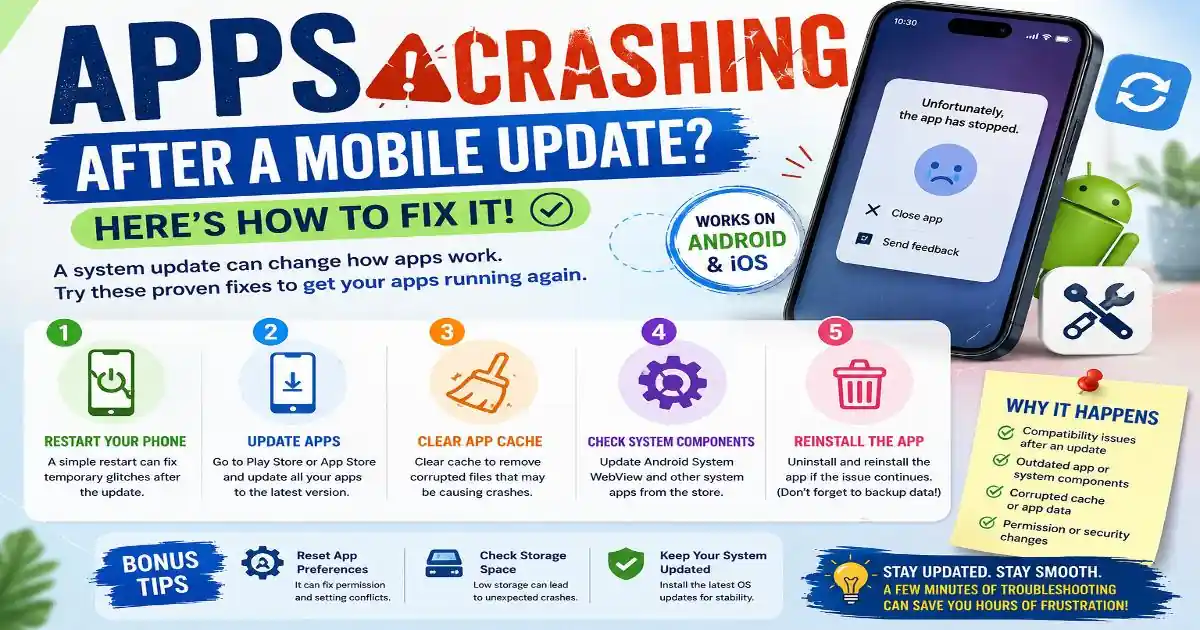
Why mobile apps crashing after update is a question many people ask after installing a new Android or iOS version and discovering that an app that worked perfectly yesterday now closes, freezes or refuses to open.
The frustrating part is that the phone itself may appear completely normal. Calls work. The browser opens. Photos load. Other applications behave normally. Yet one particular app suddenly crashes every time you tap it.
This does not automatically mean the update damaged your phone. Mobile applications depend on several layers of software, including the operating system, system libraries, security components, graphics frameworks, storage, permissions and the app's own code. A major operating system update can change one of those layers enough to expose a compatibility problem.
The good news is that many post-update crashes can be diagnosed without factory-resetting the device or immediately replacing the application.
Why mobile apps crashing after update happens
An application is not isolated from the operating system. Developers build apps against specific versions of Android or iOS and the APIs, libraries and behaviors available around them.
When Google, Apple or another platform vendor releases a major system update, some underlying behavior can change. An app may rely on an older library, encounter a new permission rule, conflict with a system component or simply contain a bug that was not visible under the previous operating system.
Sometimes the problem is on the app developer's side. Sometimes it is a temporary issue in the operating system. In other cases, the update exposes corrupted local data that had been working normally before the upgrade.
That is why troubleshooting should start with the least destructive fixes and become more advanced only when necessary.
1. Restart the phone and check for app updates
A restart sounds almost too simple, but it is a useful first diagnostic step after a major software update. System services may have been replaced, background processes may be stuck, and applications may still be using resources from the previous software environment.
Restart the phone normally and then check the official app store for updates to the crashing application.
This matters because developers often release compatibility updates around major operating-system changes. An app that crashes immediately after an OS upgrade may already have a newer version designed to address the problem.
On Android, also check whether important system components have pending updates through Google Play. On some devices, components such as Android System WebView can affect applications that display web-based content inside their interfaces.
2. Clear the app cache on Android
If an Android application continues crashing after the app and phone have been updated, clearing its cached data can be a useful next step.
Cached files are temporary resources that help an application load faster. After a major system or application change, an old cached resource can occasionally contribute to unexpected behavior.
The exact menu names vary between manufacturers, but Android devices commonly provide an app information screen where storage and cache controls can be accessed.
Start by clearing the cache rather than immediately clearing all application data. Cache clearing is less disruptive because it generally does not remove the application's stored account information or settings in the same way that clearing data can.
If clearing the cache does nothing, check whether the application itself provides a repair, reset or account-recovery option before taking a more destructive step.
3. Check Android System WebView and related components
Some Android applications display websites, login pages, help content or other web-based interfaces inside the app. These experiences can depend on system components rather than the application alone.
Android System WebView is one component that can matter in this area. If an application that relies heavily on embedded web content starts crashing after an update, checking for available updates to WebView and related browser components can be worthwhile.
This is particularly relevant when several different applications begin showing similar problems at roughly the same time. If multiple unrelated apps that use web content suddenly fail, the issue may be broader than a single app installation.
Users should install system components through trusted sources such as Google Play rather than downloading replacement packages from random websites.
4. Reset app preferences before changing everything
Android users can also encounter problems caused by changed permissions, disabled services or unusual application defaults. Resetting app preferences can restore certain application-level defaults without deleting all personal files.
This option is different from uninstalling every application or resetting the entire phone. It is intended to restore app-related settings such as disabled apps, default applications and certain permission-related preferences.
Because menu names and behavior can vary across Android versions and manufacturers, read the confirmation screen carefully before accepting a reset.
On iPhone, the troubleshooting path is different because iOS does not provide the same Android-style cache and app-preference controls. Instead, users generally rely more heavily on restarting the device, updating the application, checking available storage, reviewing permissions and reinstalling the affected app when necessary.
5. Reinstall the application if the problem remains
Reinstalling an application is one of the more effective ways to remove damaged local files or an installation that did not transition cleanly after a system upgrade.
Before uninstalling, consider whether the app stores important information locally. Check whether your account data is synchronized to the cloud and whether any offline documents, drafts or downloaded files could be lost.
Once you are confident that important information is backed up or synchronized, uninstall the application and install a fresh copy from the official app store.
If the newly installed version still crashes immediately, that is useful information. The problem is less likely to be a simple corrupted installation and more likely to involve compatibility, a particular device configuration, an account-specific issue or a bug in the application's current release.
What if only one app is crashing?
If every other application works normally and only one app fails, avoid jumping straight to a phone-wide reset.
A single-app failure often points toward the application itself, its local data or compatibility with the new operating system. Check the developer's current release notes or support information and see whether other users are reporting the same behavior.
You can also try signing out and back in if the application allows it, particularly when the crash occurs after authentication rather than immediately at launch.
If the app is essential for work or communication, temporarily using its official website or another supported device can help determine whether the problem is tied to the phone rather than the account.
When several apps start crashing after an update
A different pattern appears when multiple unrelated applications begin failing immediately after the same operating-system update.
That situation deserves broader investigation. Check whether the device has enough free storage, whether another system update is available, and whether the affected applications have released compatibility updates.
It is also worth checking the manufacturer's support pages and official community channels for known compatibility problems. Avoid relying solely on social media posts claiming that a particular setting or unofficial download will “repair” the phone.
Security is part of troubleshooting. A fix that requires installing an unknown APK, disabling important protections or granting unnecessary permissions can create a bigger problem than the original crash.
When should you contact the app developer?
If an application still crashes after updating, restarting, clearing appropriate cache data and reinstalling it, contacting the developer can be more useful than repeatedly changing phone settings.
Include the device model, operating-system version, application version and a description of what happens immediately before the crash. If possible, mention whether the problem began directly after the operating-system update.
That information helps developers distinguish between a general compatibility problem and a device-specific issue.
Most importantly, do not assume that every post-update crash requires drastic action. Mobile software is a layered ecosystem, and a failure in one layer can appear as a simple app closing unexpectedly.
A calm troubleshooting sequence is usually more effective: update everything, restart, check relevant system components, clear appropriate temporary data, review settings, and reinstall only when necessary. If several apps are affected, investigate the operating-system level rather than treating each application as a separate problem.
That approach can save time, protect your data and help you identify whether the real issue is the app, the operating system or the interaction between them.
Official References & Citations
- "Why Mobile Apps Crashing After Update? Try These 5 Fixes Intelligence Briefing" — Softech Alert Security Intelligence
- "Cyber Threat & Scam Analysis Report" — Digital Defense Portal
- "Consumer Advisory on Web & Mobile Threats" — Security Guidelines