Is your Android phone suddenly showing unwanted advertisements, redirecting you to unfamiliar websites, or behaving differently than usual? These symptoms can be frustrating, and in some cases, they may indicate unwanted software or malware. Knowing how to remove malware from an Android phone can help you protect your personal information, online accounts, and financial data.
However, not every slow phone or pop-up is evidence of a virus. Storage problems, outdated software, browser notifications, and poorly designed apps can also cause similar symptoms. Before installing a cleaner app or resetting your device, identify what is happening and follow a safe troubleshooting process.
This guide explains how to check for Android malware, remove suspicious apps, use Google Play Protect, secure your accounts, and decide when a factory reset may be necessary.
What Are the Warning Signs of Malware on an Android Phone?
Malware is software designed to perform unwanted or harmful actions, such as stealing information, displaying intrusive advertisements, or accessing device features without appropriate permission. Some malicious apps attempt to look like legitimate tools, games, or security utilities.
According to Google's malware removal guidance, possible warning signs include persistent pop-ups, unusual device behavior, reduced available storage, and browser changes you did not make.
Watch for these symptoms:
- Persistent pop-up advertisements: Ads appear outside the normal browsing experience or keep returning after you close them.
- Unexpected browser redirects: Websites send you to unfamiliar pages, or your homepage or search engine changes without permission.
- Unfamiliar applications: Apps appear that you do not remember installing.
- Unusual battery or data usage: An app consumes substantially more resources than you expect.
- Unexpected account activity: You receive security alerts or messages about activity you did not initiate.
- Changed permissions: An unfamiliar app has access to sensitive features such as Accessibility, SMS, contacts, or notifications.
One symptom alone does not prove that your phone is infected. Look for a pattern, review recently installed apps, and check whether the behavior started after a particular download or website visit.
How to Remove Malware from an Android Phone
If you suspect malware, work through the following steps in order. Menu names may differ depending on your Android version and phone manufacturer.
1. Stop interacting with suspicious alerts
If a webpage suddenly claims that your phone has several viruses, do not tap its download button, call its displayed support number, or provide payment information. Such warnings may be scare tactics intended to make you install a harmful app or reveal personal details.
Close the browser tab or window. If it refuses to close, exit the browser and reopen it without restoring suspicious pages. Avoid installing an unfamiliar antivirus app simply because a pop-up recommends it.
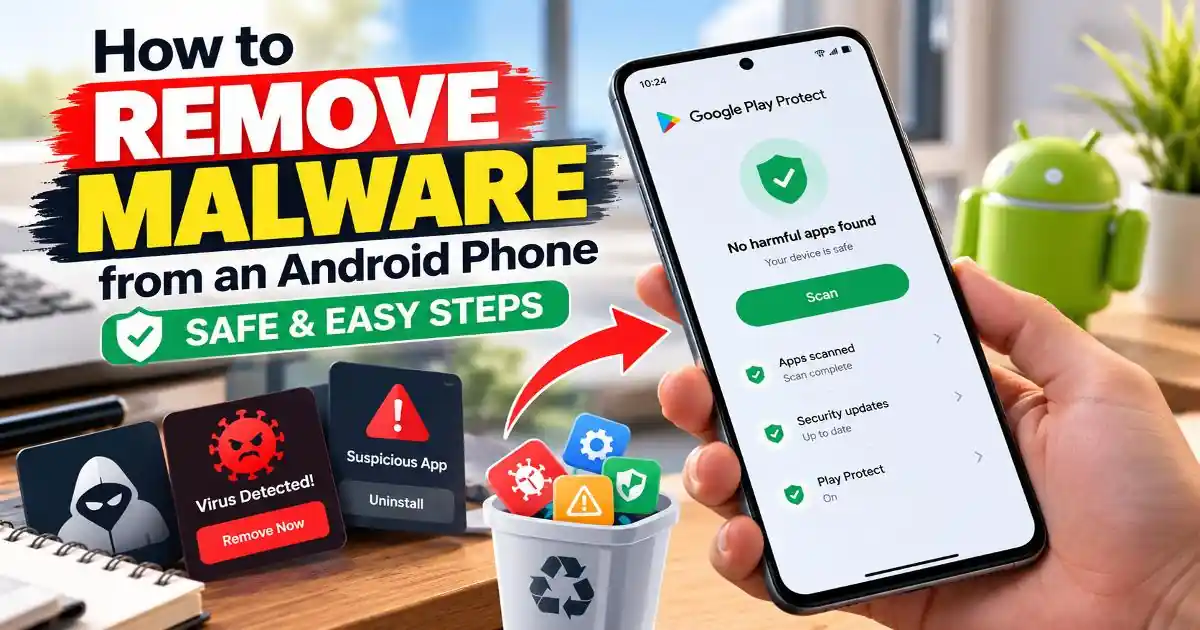
2. Run a scan with Google Play Protect
Google Play Protect checks apps for potentially harmful behavior and can warn you about, disable, or remove certain harmful applications. It is a useful starting point for checking an Android device.
- Open the Google Play Store.
- Tap your profile icon.
- Select Play Protect.
- Run a scan if the option is available.
- Open Play Protect settings and make sure app scanning is enabled.
If you have installed apps from outside Google Play, review the additional harmful-app detection option in Play Protect settings. Follow any warnings that appear and remove apps identified as harmful.
For more information, read the official Google Play Protect safety guide. A clean scan is helpful, but it does not guarantee that every possible threat has been detected.
3. Uninstall unfamiliar or suspicious apps
Review the apps installed around the time the unusual behavior began. Pay particular attention to apps downloaded from unofficial websites, unexpected APK files, and applications that request permissions unrelated to their advertised purpose.
- Open your phone's Settings.
- Go to Apps or Apps management.
- Review the installed-app list.
- Select an app you do not trust.
- Tap Uninstall, if available, and confirm.
Do not remove essential system components just because their names are unfamiliar. If you are unsure about an app, check its developer and purpose before uninstalling it.
4. Check special permissions and administrator access
Some harmful applications try to make themselves difficult to remove by requesting powerful permissions. Review settings such as Accessibility, Device admin apps, notification access, and permission access where available. The exact locations depend on your device.
If an unfamiliar app has a powerful permission, revoke that access before trying to uninstall it. Only change permissions you understand, and avoid disabling legitimate security or accessibility features that you rely on.
If an app still cannot be removed, restart the phone in Safe Mode using the instructions for your specific model. Safe Mode temporarily disables downloaded apps on many Android devices, which can make troubleshooting easier. Remove the suspected app and restart normally. If you cannot identify the app or safely change its permissions, consult the phone manufacturer's support.
5. Update Android and your apps
Security updates can fix vulnerabilities that attackers may exploit. Open Settings and look for System update or Software update. Also check for Google Play system updates where your device supports them.
Open the Play Store, review available app updates, and install updates from trusted sources. Restart the phone if required. If the device no longer receives security updates, check the manufacturer's support information to understand your options.
6. Secure your Google account and other important accounts
Removing a suspicious app does not automatically undo information that may already have been stolen. If you entered a password into a suspicious website or suspect that an app accessed your accounts, use a different device you trust to secure them.
- Change exposed passwords, starting with your primary email and Google account.
- Use unique passwords rather than reusing the same password across services.
- Enable two-step verification where available.
- Review recent account activity and sign out unfamiliar devices or sessions.
- Check banking and payment accounts for transactions you do not recognize.
If you discover unauthorized financial activity, contact your bank or payment provider through its official app or website promptly. Never share an OTP, recovery code, or password with someone who contacts you unexpectedly.
7. Consider a factory reset if the problem continues
If malware symptoms persist after removing suspicious apps and updating the device, a factory reset may be appropriate. It erases personal data and installed apps from the phone, so first back up essential photos, contacts, and documents carefully.
A backup can contain the same unwanted app or files you are trying to remove. Back up necessary personal files, but avoid automatically restoring every app or configuration. After resetting, install updates and reinstall apps from trusted sources. If you suspect serious compromise, get advice from the manufacturer or a qualified security professional before restoring sensitive data.
What If Your Android Phone Still Shows Fake Virus Alerts?
If the alerts appear only while browsing a particular website, they may be deceptive website notifications rather than a device-wide infection. Close the page and review Chrome's site notification permissions. Remove permission for unfamiliar or untrusted websites.
You can also clear the affected website's data through the browser settings. Be aware that clearing data may sign you out of websites or remove locally stored information. If alerts continue outside the browser, inspect installed apps and their permissions rather than assuming the browser is the only cause.
Never pay a pop-up, call a number displayed in a warning, or install a remote-access tool because a stranger claims your phone is infected. If you need help, contact the device manufacturer through its official support channel.
How to Prevent Android Malware in the Future
Prevention reduces the chances of installing harmful software or exposing sensitive accounts. Keep Google Play Protect enabled, install Android security updates, and download apps through Google Play or the developer's verified official source.
Before installing an app, check the developer, reviews, permissions, and whether its requested access makes sense. Be cautious with APK downloads shared through messages, social media, or unofficial websites. Avoid granting Accessibility or device administrator access to an app unless you understand why it needs that access.
Keep regular backups, use a secure screen lock, enable two-step verification, and review account alerts. Be suspicious of urgent messages claiming that your phone, bank account, or cloud storage will be disabled unless you act immediately. For Apple devices, the principles are similar: follow official guidance and avoid suspicious links, downloads, and fake security warnings. Apple's guide to recognizing scams and social engineering explains these tactics in more detail.
Final Thoughts
Learning how to remove malware from an Android phone starts with checking the symptoms instead of trusting alarming pop-ups. Run Google Play Protect, remove apps you do not trust, review powerful permissions, update your device, and secure any accounts that may have been exposed. If the problem persists, consider a carefully prepared factory reset or seek professional support.
No single scan can guarantee complete protection. A combination of trusted app sources, current software, sensible permissions, and strong account security offers a safer approach to everyday mobile use.