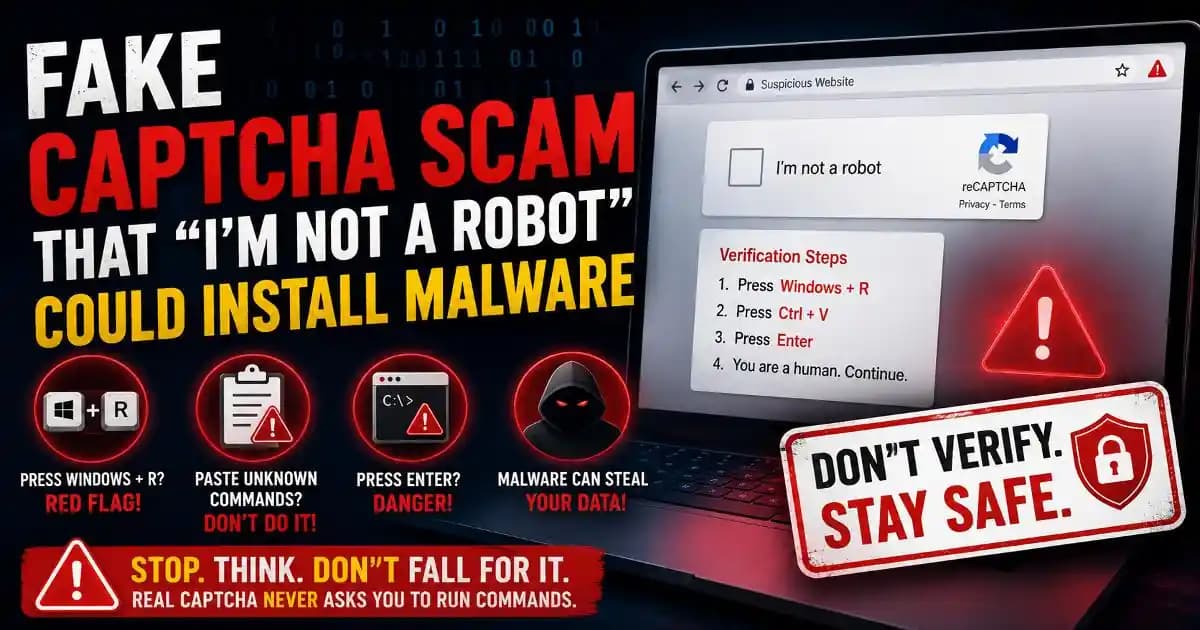
A fake CAPTCHA scam can turn a routine “I’m not a robot” check into a malware trap before you realize anything is wrong. Instead of asking you to identify pictures, type characters, or simply confirm that you are human, the page may instruct you to press keyboard shortcuts, paste something, and press Enter.
That small change is the warning sign. A genuine CAPTCHA is designed to distinguish people from automated programs. It should not require you to open a system utility, paste an unknown command, download software, or execute instructions on your computer. The Federal Trade Commission has warned consumers about fake CAPTCHA pages that use exactly this kind of social engineering.
Why the fake CAPTCHA scam is so convincing
The trick works because the attackers are borrowing a familiar security interaction. Most people have encountered CAPTCHA checks while signing into an account, accessing a website, posting a comment, or completing an Online form. Seeing a “Verify you’re human” Message therefore does not immediately feel suspicious.
Attackers take advantage of that familiarity. A fake page may copy the appearance of a legitimate CAPTCHA, use reassuring language such as “Security Verification,” and display instructions that appear to be part of the verification process. The goal is to make an unusual computer action feel routine.
This is a form of social engineering. Instead of exploiting a technical vulnerability directly, the attacker persuades the victim to perform an action that launches the malicious process.
What makes a fake CAPTCHA different from a real one?
A real CAPTCHA normally asks you to complete a challenge within the webpage. You might select specific images, identify objects, enter displayed characters, or complete another simple verification task.
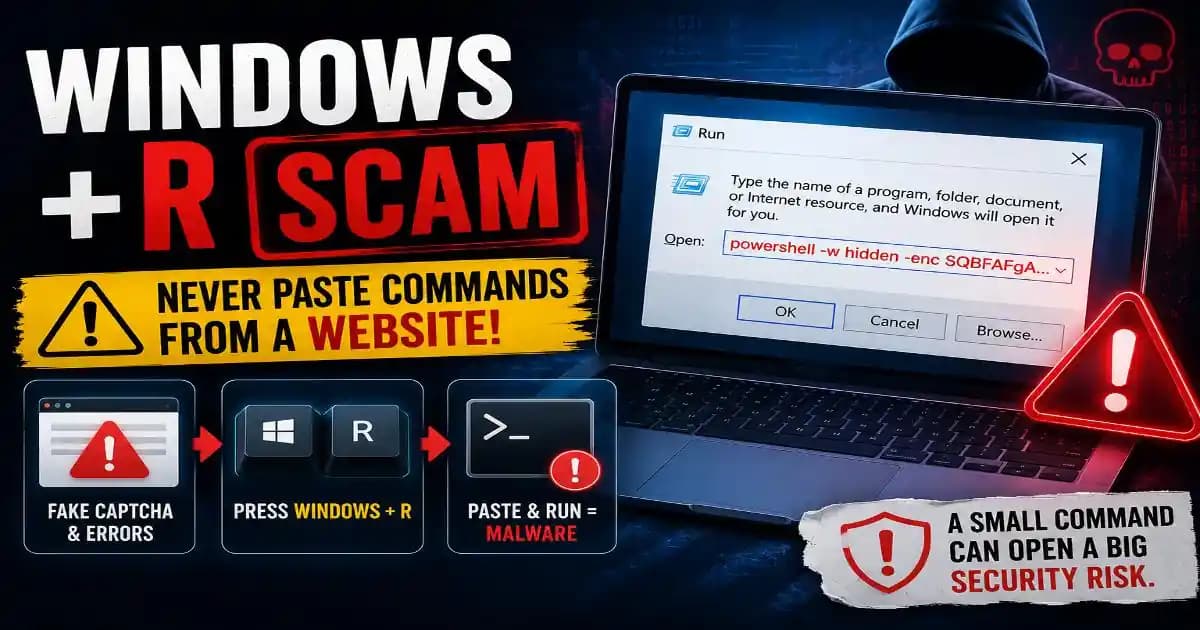
A fake CAPTCHA crosses an important boundary when it asks you to interact with the operating system itself. Instructions such as pressing Windows + R, opening PowerShell or Command Prompt, pasting text from the clipboard, or pressing Enter to execute something are not normal CAPTCHA behavior.
The keyboard shortcut itself is not malicious. Windows + R is a legitimate Windows feature that opens the Run dialog. The danger comes when an untrusted webpage convinces you to paste and execute an unknown command through that dialog.
How the “Windows + R” CAPTCHA trap works
The attack generally starts with a webpage that displays a fake verification prompt. The page may appear after clicking a search result, advertisement, social media link, compromised website, or another online resource.
After the user interacts with the fake CAPTCHA, the page may display instructions similar to a technical troubleshooting procedure. The victim is told to press Windows + R, use Ctrl + V to paste something, and then press Enter.
The important detail is that the command may already have been placed on the clipboard. Instead of requiring the victim to understand or manually type the command, the attacker tries to make the process as easy as possible.
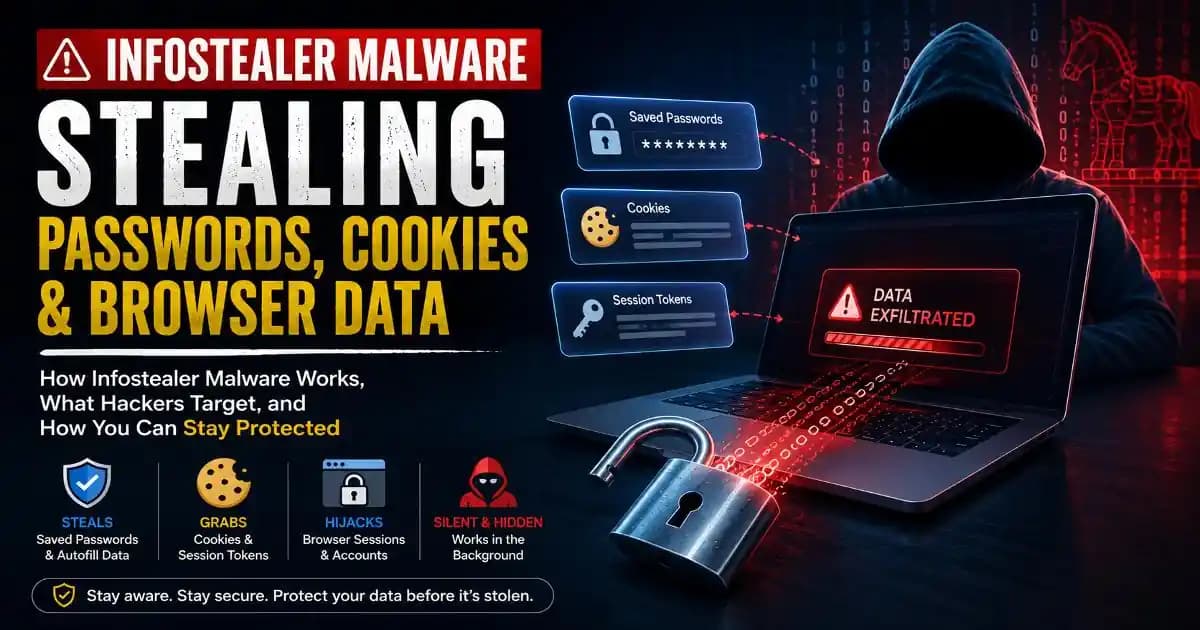
Once the victim executes it, the command can launch a malicious process. Depending on the campaign, the payload may be designed to steal information, download additional malware, establish persistence, or compromise accounts.
This technique is closely related to the broader ClickFix-style family of attacks, where fake error messages, verification screens, or technical instructions persuade users to execute commands themselves.
What can fake CAPTCHA malware steal?
The consequences depend on the malware delivered by the campaign. Information-stealing malware can target browser data, saved credentials, authentication information, cookies, cryptocurrency wallets, files, or other sensitive information available on the compromised Device.
That is why this scam should not be treated as just another annoying pop-up. If someone follows the instructions and executes an unknown command, the potential issue moves from “I visited a suspicious website” to “untrusted software may have run on my computer.”
The risk can be particularly serious when the device is used for email, online banking, cloud storage, remote work, business accounts, developer platforms, or other services containing valuable information.
Five warning signs of a fake CAPTCHA scam
It asks you to open Windows Run
A CAPTCHA has no legitimate reason to make you open Windows Run to prove that you are human. Treat this as a major warning sign.
It tells you to paste a command
Never paste an unknown command into PowerShell, Command Prompt, Windows Run, Terminal, or another system utility because a webpage told you to do so.
It tells you to press Enter after pasting
This combination is particularly suspicious because it turns a copied instruction into an executable action. Stop before pressing Enter.
The page calls the process a security verification
Attackers often use trustworthy-sounding language to make dangerous instructions appear legitimate. Words such as “security check,” “human verification,” or “browser verification” do not make the instructions safe.
The CAPTCHA behaves unlike every CAPTCHA you have used before
If a verification screen suddenly requires system commands, downloads, extensions, or unusual permissions, do not continue simply because the page looks professional.
What to do if you already followed the instructions
If you only saw the fake CAPTCHA and did not execute anything, close the page and avoid returning to it. Simply encountering a malicious page does not automatically mean your device is infected.
If you did press Windows + R, paste an unknown command, and execute it, take the situation more seriously. Disconnecting the affected device from the internet can help limit further communication while you assess the situation. Run a reputable security scan and make sure your operating system and security software are fully updated.
If the computer may have been compromised, change important passwords from a separate trusted device. Prioritize email, banking, cloud storage, workplace accounts, and other services that could expose additional accounts. Enable multi-factor authentication where available.
Also review recent account activity and active sessions. If you notice unfamiliar logins, password changes, recovery settings, or transactions, follow the affected service's account recovery and security procedures.
Why fake CAPTCHA scams are becoming harder to recognize
The underlying idea is simple, but attackers can make the presentation increasingly convincing. A malicious page does not have to look obviously broken. It can use familiar branding, polished design, animations, countdowns, browser-style notifications, and instructions that resemble legitimate technical support.
That is why visual appearance is no longer enough to judge a verification page. The more important question is what the page is asking you to do.
This principle also connects fake CAPTCHA attacks with broader phishing and scam patterns. Attackers often create a believable situation first and then use urgency or authority to push the victim toward an unsafe action.
How to protect yourself from fake CAPTCHA malware
The simplest rule is also the most useful: a CAPTCHA should not require you to run a command on your computer.
Do not copy and execute commands supplied by unfamiliar webpages. Keep your browser, operating system, and security software updated. Be cautious with suspicious search results and advertisements, especially when a page suddenly claims that your browser needs an urgent verification or repair.
For businesses and remote workers, the same rule should be included in security training. Employees should know that a website asking them to open system utilities and paste commands is not a normal verification process, even when the page looks professional.
Strong account security also limits the damage if credentials are exposed. Use unique passwords, enable multi-factor authentication, review active sessions, and avoid storing unnecessary sensitive information in browsers or devices that are regularly exposed to unknown websites.
The safest CAPTCHA is the one that does not ask you to trust a command
The fake CAPTCHA scam succeeds because it makes a dangerous action look ordinary. “I’m not a robot” is familiar, so users may follow instructions without questioning why a human-verification test suddenly needs access to Windows Run or another system tool.
That is the detail worth remembering. If a CAPTCHA asks you to press Windows + R, paste a command, open PowerShell, download software, or execute anything outside the webpage, stop.
You do not need to prove that you are human by running a command for a website. Close the page, return through a trusted route if necessary, and treat unexpected system instructions as a potential security warning. A few seconds of skepticism can prevent a familiar browser interaction from becoming a serious malware incident.