
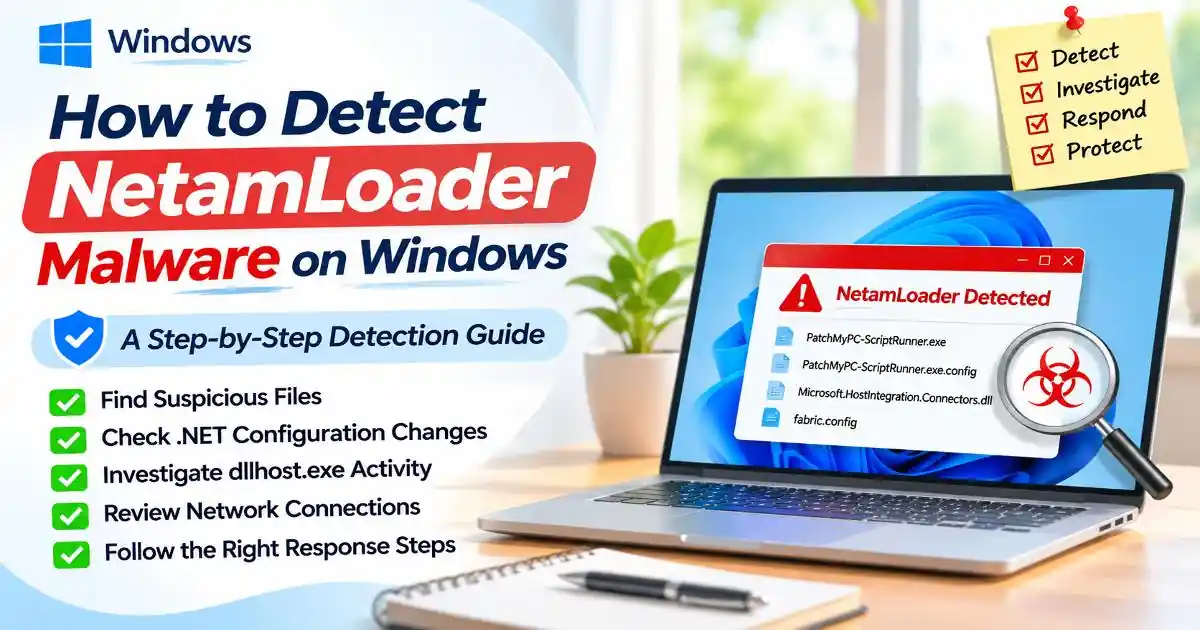
Knowing how to detect NetamLoader malware on Windows requires more than running a standard antivirus scan. This recently documented .NET-based malware framework uses legitimate software components, modified configuration files, and trusted Windows processes to conceal its activity. That makes it important for security teams to examine where programs run, which configuration files they load, and what happens immediately before and after execution.
In an investigation published on October 29, 2026, Kaspersky described NetamLoader in an attack targeting a customized Windows 10 system used by a government organization in an Asian country. Researchers identified one victim through their monitoring network. The initial delivery method was not observed, and the activity was not attributed to a known threat group. The findings also do not establish that Patch My PC or its distribution infrastructure was compromised.
This guide explains the main investigation clues, how administrators can review suspicious Windows activity, and what to do if an endpoint shows signs of compromise. It is a defensive investigation guide, not a claim that every listed file or process is malicious.
What Makes NetamLoader Difficult to Detect?
NetamLoader is a multi-stage malware framework that uses .NET components and XAML-based payloads. Its reported execution chain begins with a CAB archive stored in the Windows update download directory. The extracted files include legitimate software components, while a malicious configuration and resource file help redirect execution into attacker-controlled code.
One important technique in this chain is AppDomainManager injection. In .NET, AppDomainManager helps manage application domains inside a process. An attacker can abuse configuration settings to make a legitimate .NET application load an unexpected assembly. MITRE ATT&CK classifies this behavior as T1574.014: Hijack Execution Flow through AppDomainManager.
This technique can make an ordinary executable appear less suspicious when defenders only check its digital signature. A legitimate signature does not prove that every configuration file, resource, or assembly loaded alongside that executable is trustworthy.
1. Check the Windows Update Download Directory
One of the most useful investigation clues in the Kaspersky report is the location where the suspicious CAB archive was found:
C:\Windows\SoftwareDistribution\Download\
The archive was extracted into a directory named Install. Researchers reported that the extracted files included Patch My PC components and other supporting files. The presence of this directory alone is not evidence of infection because Windows legitimately uses SoftwareDistribution to stage update-related files.
Instead, investigate unexpected executable files, configuration files, or resource files appearing in this location, especially when they are associated with unusual process execution.
Pay particular attention to these reported file names:
PatchMyPC-ScriptRunner.exePatchMyPC-ScriptRunner.exe.configMicrosoft.HostIntegration.Connectors.dllfabric.configResources.resx
These names come from the reported infection chain. Some are legitimate software components or supporting files that can also appear in legitimate environments. Their presence should trigger contextual investigation, not automatic conclusions.
2. Investigate Unexpected PatchMyPC-ScriptRunner.exe Execution
Kaspersky observed PatchMyPC-ScriptRunner.exe running from the extracted Install directory with update-package arguments. In the reported case, this executable acted as a host for the next stages of the loading process.
Administrators should review process-creation telemetry and establish:
- Whether the executable ran from its expected software installation directory or from the Windows update download directory.
- Which parent process launched it.
- Whether the command line included unexpected update-package arguments.
- Whether a new configuration file appeared beside the executable shortly before execution.
- Whether the process loaded assemblies or resources from an unusual directory.
A process name alone is not a reliable detection rule. The executable's location, parent process, command line, file history, and loaded modules provide stronger context.
3. Look for Suspicious .NET Configuration Files
AppDomainManager injection is a central part of the documented NetamLoader execution chain. A modified .exe.config file can influence how a .NET application loads assemblies. In the reported case, the configuration associated with Patch My PC's script runner helped redirect execution through a Microsoft-signed .NET component.
During an investigation, check for configuration files that have been unexpectedly created or modified near trusted .NET executables. Review their contents and file metadata for unusual runtime settings, assembly references, or AppDomainManager-related entries.
Do not assume that every .config file is suspicious. Applications routinely use configuration files. The important question is whether the file is expected, whether its contents match a known-good installation, and whether its modification coincides with unusual process or module activity.
MITRE's DET0517 detection strategy recommends correlating configuration changes with suspicious process creation, unusual assembly loads, and changes to relevant runtime settings.
4. Monitor Unusual dllhost.exe and .NET Activity
The later stages of the reported NetamLoader chain move execution into a legitimate Windows process, including dllhost.exe. The malware uses this process to load additional XAML and .NET components.
dllhost.exe is a legitimate Windows process, so its presence is not an infection indicator by itself. Investigators should look for activity that does not fit the machine's normal behavior, including:
- Unexpected .NET assemblies loaded into dllhost.exe.
- Modules or resources loaded from unusual temporary or update-related directories.
- Unusual child-process activity or unexpected outbound network connections.
- Process activity that follows the creation of suspicious .config or .resx files.
- Unexpected changes in .NET runtime behavior or application-domain activity.
Correlating these events is more useful than blocking a legitimate Windows process based on its name alone.
5. Review AMSI, .NET Logging, and Anti-Forensics Clues
Kaspersky reported that NetamLoader interferes with the Antimalware Scan Interface (AMSI), a Windows security feature used by supported applications and security products to inspect certain content. The investigation also described attempts to remove files and records that could help reconstruct the execution chain.
Relevant investigation areas include:
- Unexpected changes in AMSI-related behavior or suspicious memory modifications affecting security scanning.
- Unusual gaps or changes in .NET runtime usage records.
- Unexpected deletion of Windows Prefetch records associated with suspicious execution.
- Changes to Windows update-related logs around the time of an unexplained process launch.
- Security product alerts indicating attempts to interfere with scanning or monitoring.
Missing logs or Prefetch files are not proof of NetamLoader. Routine maintenance, cleanup tools, and system configuration can also affect these records. Investigators should compare timestamps and correlate multiple independent sources of evidence.
6. Check Network Activity for Delayed Communication
NetamLoader does not necessarily communicate with its command-and-control server immediately after execution. Kaspersky's analysis describes a randomized delay of approximately 20 to 40 minutes before the first connection attempt. If the server does not provide a valid response, the framework can wait approximately 22 to 28 hours before trying again.
This behavior matters because a short network capture or brief endpoint observation may not include the first connection attempt. Security teams should review historical DNS, proxy, firewall, and endpoint network telemetry around the suspected execution period.
The Kaspersky report identifies openaigpt4v[.]com as an infrastructure indicator. The defanged format is intentional: do not open the address in a browser. Security teams can use the indicator in approved threat-intelligence and detection systems, while checking its current reputation and context before blocking it across an environment.
Network indicators can change or become inactive. A missing connection to one reported domain does not rule out compromise, and a match should be investigated alongside endpoint evidence.
7. Use Security Alerts and Endpoint Telemetry
Kaspersky lists the following detection names for this threat:
HEUR:Trojan.MSIL.NetamLoader.genTrojan.MSIL.Zapchast.*Trojan.Script.Agent.*
If an endpoint protection product reports one of these detections, review the affected file path, detection time, process tree, and related network activity. Detection names can vary between security vendors, and a clean scan does not guarantee that an endpoint is free of every component or trace.
For organizations using Sysmon or Windows event collection, MITRE's AppDomainManager detection guidance highlights useful telemetry, including process creation, file creation, and module-load events. Relevant examples include Windows Security Event ID 4688 for process creation and Sysmon Event IDs 11 and 7 for file creation and image loading, when those event types are enabled and correctly configured.
What to Do If You Find Suspicious NetamLoader Indicators
If multiple investigation clues appear on the same endpoint, treat the device as a potential security incident rather than attempting to delete suspicious files immediately.
- Escalate the alert: Notify the organization's security or incident-response team and record the first detection time.
- Isolate the endpoint when appropriate: Use an approved endpoint detection and response platform to restrict network access while retaining the telemetry needed for investigation.
- Preserve evidence: Record file paths, hashes, timestamps, process trees, command lines, relevant event logs, and network indicators before remediation.
- Review related systems: Check whether other endpoints show similar files, process behavior, or network activity.
- Scan and remediate: Use trusted, updated endpoint protection tools and follow the organization's incident-response procedures.
- Reset exposed credentials if necessary: If the investigation indicates that credentials or sensitive information may have been exposed, follow the organization's identity and access response process.
- Validate recovery: Confirm that suspicious activity has stopped, security monitoring is functioning, and the endpoint is safe to return to normal operation.
Microsoft Defender Offline can provide an additional scanning option for supported Windows systems when a deeper malware check is required. Microsoft explains how to run and review an offline scan in its official Defender Offline documentation. In a suspected targeted intrusion, however, scanning should not replace evidence preservation and a coordinated incident-response investigation.
How Organizations Can Reduce Similar Risks
NetamLoader demonstrates why organizations should not rely only on executable names or digital signatures. Security controls should also examine how applications are configured and what they load at runtime.
- Restrict write access to application installation directories and sensitive Windows locations.
- Monitor unexpected configuration-file changes beside trusted .NET executables.
- Collect process-creation, file-creation, and module-load telemetry across managed endpoints.
- Use application control and endpoint behavior detection to identify suspicious execution chains.
- Review patch-management tools, update workflows, and the systems authorized to distribute software.
- Keep endpoint protection, Windows components, and security intelligence up to date.
- Test incident-response procedures so that suspicious endpoints can be isolated and investigated without destroying important evidence.
MITRE also recommends restricting file and directory permissions to reduce opportunities for attackers to modify configuration files and application resources used by .NET programs. These controls help reduce the risk of execution-flow hijacking, although no single measure can prevent every attack.
Final Thoughts
Detecting NetamLoader malware requires defenders to connect several clues: unusual files in the Windows update download directory, unexpected execution of a trusted patch-management component, suspicious .NET configuration changes, unusual assembly loading inside dllhost.exe, and network activity that may be delayed.
None of these indicators should be treated as conclusive in isolation. The strongest investigation combines endpoint telemetry, file and process history, network records, and security-product alerts. The original Kaspersky research describes one identified victim and does not establish a broader infection count or a confirmed initial delivery method. Organizations should use the findings as a focused threat-hunting reference while avoiding unsupported assumptions about the software vendor or the identity of the attackers.
For more background on the malware's discovery and technical execution chain, read our related report: NetamLoader Malware: How It Targets Government Windows PCs.
Frequently Asked Questions
1. What is the strongest indicator of NetamLoader malware?
There is no single indicator that proves an infection. A suspicious combination of files in the Windows SoftwareDistribution download directory, unexpected PatchMyPC-ScriptRunner.exe execution, modified .NET configuration files, and unusual assembly loading is more meaningful than any one file name.
2. Is PatchMyPC-ScriptRunner.exe itself malware?
Not necessarily. PatchMyPC-ScriptRunner.exe is associated with legitimate Patch My PC software. In the reported NetamLoader case, attackers abused legitimate components and supporting configuration files. Investigators should verify the executable's origin, location, configuration, and runtime behavior before making a decision.
3. Can Windows Defender detect NetamLoader?
Detection depends on the security product, its current intelligence, configuration, and the artifacts present on the endpoint. Kaspersky published specific detection names for NetamLoader and related components. A clean scan from another product should not be treated as proof that a system is uncompromised.
4. Why is dllhost.exe relevant to a NetamLoader investigation?
Kaspersky described a later stage in which NetamLoader runs additional payload content inside dllhost.exe. Since dllhost.exe is a legitimate Windows process, investigators should examine its loaded modules, file paths, process history, and network behavior rather than treating every instance as malicious.
5. Does finding a suspicious file in SoftwareDistribution prove a malware infection?
No. Windows legitimately stores update-related files in SoftwareDistribution. A suspicious archive or configuration file in that location should be investigated alongside process execution, file metadata, security alerts, and other endpoint evidence.