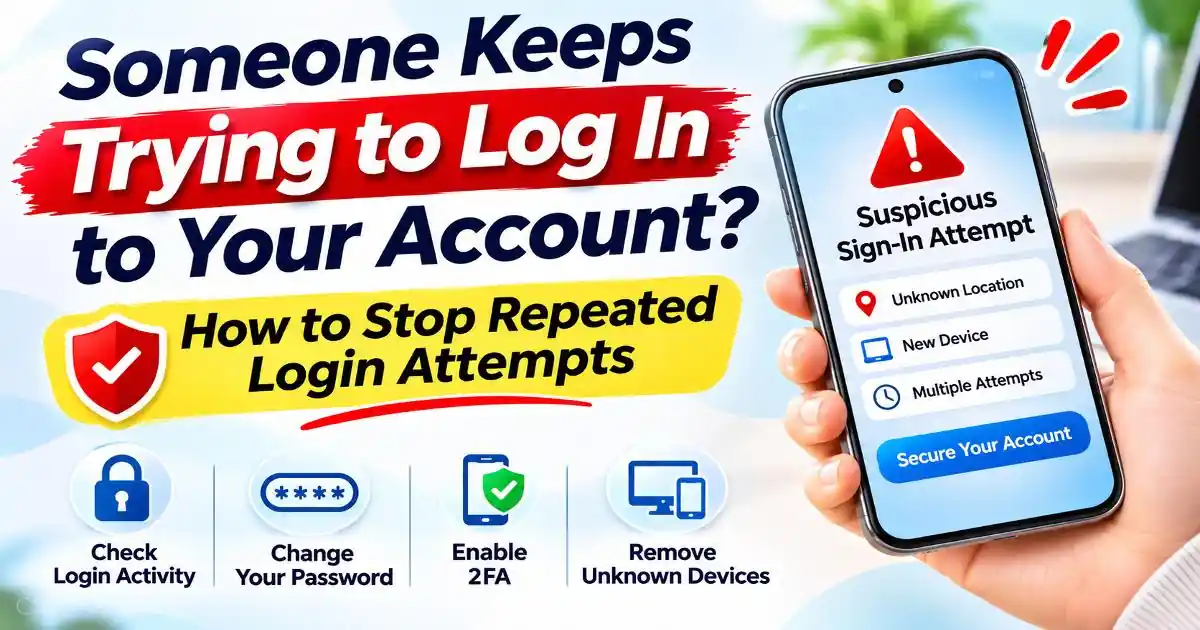
Receiving one unexpected login notification can be unsettling. Receiving several within a short period is even more concerning. You may see alerts saying someone entered an incorrect password, attempted to sign in from an unfamiliar device, or requested an additional verification code. Sometimes the attempts continue even when you are not using the account.
If someone keeps trying to log in to your account, the first thing to understand is that repeated attempts do not automatically mean the attacker has gained access. A service may be blocking every attempt because the password is incorrect or an additional security check has stopped the sign-in. However, repeated activity can indicate that your email address, username or password is being targeted.
These attempts may involve password guessing, credential stuffing or automated login tools. The right response depends on whether the attempts failed or whether someone actually signed in. This guide explains how to identify the difference, protect your accounts and reduce the risk of another attempt succeeding.
Why Does Someone Keep Trying to Log In to Your Account?
Attackers do not always target accounts by manually guessing passwords. Many use automated tools that test previously exposed credentials or common password combinations across multiple services. Some methods can generate repeated alerts even when the account owner has done nothing.
1. Credential stuffing using leaked passwords
Credential stuffing happens when attackers use usernames and passwords exposed in previous data breaches to attempt access to other websites. People who reuse the same password across multiple services are particularly vulnerable.
For example, if a password was exposed in a breach involving an online shopping account and the same combination is used for email, an attacker may try those credentials against the email provider. The attempt may fail, but it can still trigger a security notification.
2. Password guessing and brute-force attempts
Password guessing involves trying possible passwords until one works. Automated brute-force tools can test many combinations, although services commonly use rate limits, suspicious-activity detection and other controls to make repeated attempts more difficult.
Weak passwords, predictable patterns and passwords based on publicly available personal information can make an account easier to target.
3. Password spraying
Password spraying is different from trying many passwords against one account. Attackers test a small number of commonly used passwords against many usernames. This approach is designed to reduce the likelihood of triggering account lockouts on individual accounts.
It is particularly relevant to workplace and organisational accounts, where attackers may target several employees using the same common password patterns.
4. Your email address or username is publicly available
Your email address may appear in public profiles, old data breaches, business directories or previously shared contact lists. Attackers do not necessarily need to know your password before they can attempt a sign-in.
Knowing an email address or username can be enough to start automated login attempts. This is why receiving a failed-login notification does not prove that your password has been stolen.
5. Someone may already know an old password
If you previously used a password on another website, it may have been exposed through a breach or phishing incident. An attacker may continue testing that password even after you have stopped using the affected service.
If you receive repeated alerts involving a password you still use, treat the situation more seriously and check whether that password has been reused elsewhere.
Does a Failed Login Attempt Mean Your Account Has Been Hacked?
No. A failed login attempt means the service did not complete that sign-in. It may have rejected an incorrect password, blocked a suspicious request or stopped the process because additional verification was not completed.
However, not all failed attempts carry the same meaning. The details in the security activity record can help you understand what happened.
When the password was incorrect
If the service reports that someone entered an incorrect password, the attempt was not successful. The activity could be an automated guessing attempt, a credential-stuffing attempt or even a sign-in you started and then abandoned.
For example, Microsoft identifies an incorrect-password event as a sign-in attempt that was not allowed. Its guidance says an unsuccessful attempt alone does not necessarily mean that the account has been accessed.
When the password was correct but verification failed
This deserves more attention. If a service reports that the primary password was accepted but an additional verification step failed, someone may already know the correct password. In this situation, changing the password and reviewing security settings is a sensible precaution.
When the sign-in was successful
An unfamiliar successful sign-in is more serious than a blocked attempt. It may mean someone accessed your account. You should immediately secure the account, change the password, remove unfamiliar sessions and review recovery information.
Do not judge an alert only by its location. Mobile networks, VPNs and internet service providers can make a legitimate sign-in appear to come from a different city or region. Check the device, browser, time and activity details together.
What Should You Do If Someone Keeps Trying to Log In?
If you are receiving repeated login alerts, follow these steps in order. You do not need to panic, but you should make sure the account is protected before another attempt succeeds.
Step 1: Verify the alert without clicking its link
Start by checking whether the notification genuinely came from the service. Fake security emails and text messages can imitate Google, Microsoft, Apple, banks and social media platforms.
Do not use a login link included in an unexpected message. Instead, open the official application or manually enter the service's known website address. Navigate to its security settings and review recent activity there.
Step 2: Check whether the attempts actually succeeded
Look for the result of each sign-in attempt. An incorrect password, blocked attempt, failed verification challenge and successful sign-in are different events.
Pay attention to unfamiliar devices, browsers, operating systems, access times and security-setting changes. If the account shows a successful login that you cannot explain, treat it as a possible compromise.
Step 3: Change your password when there is a reason to suspect exposure
If you see an unfamiliar successful sign-in, a correct-password attempt followed by failed verification, or evidence that your password has been exposed, change it immediately using the official account settings.
Create a long, unique password that you do not use on another website. A reputable password manager can help generate and store different passwords for different accounts.
If all you see is an unsuccessful incorrect-password attempt and you have no other indication of exposure, a password change may not always be necessary. Still, check whether your existing password is unique and strong. If it is reused or weak, replace it.
Step 4: Sign out unfamiliar devices and sessions
Changing a password is not the only action needed after a confirmed compromise. Some services allow existing sessions or connected devices to remain active until they are separately revoked.
Open the account's device or session-management page. Remove devices you do not recognise and use the option to sign out of other sessions where available. You may need to sign in again on your own trusted devices.
Step 5: Review recovery information
Check the recovery email address, phone number, trusted devices, authentication methods and backup options associated with the account.
Attackers who gain access may try to add their own recovery information so they can regain access later. Remove unfamiliar details and confirm that you still control every recovery method listed.
Step 6: Enable stronger sign-in protection
Enable multi-factor authentication (MFA) if it is not already active. An authenticator app, a security key or a passkey can provide stronger protection than relying only on a password.
Where supported, passkeys use public-key cryptography and are designed to resist common phishing attacks. Keep recovery methods secure, because losing access to your trusted devices can make account recovery more difficult.
Step 7: Check connected applications and account permissions
Review applications and websites that have permission to access your account. Remove connections you do not recognise or no longer use. Also inspect recent changes to email forwarding, mailbox rules, account aliases and security settings if the affected account is an email account.
This is particularly important after a successful compromise. An attacker may try to maintain access through an authorised application or changed account settings even after a password is updated.
How to Check Login Attempts on Google, Microsoft and Apple Accounts
Major account providers offer security pages where users can review unfamiliar activity and manage devices. Always open these pages through the official app or website rather than following an unexpected message link.
Google Account
- Open your Google Account settings.
- Select Security or Security & sign-in.
- Review Recent security activity and any unfamiliar sign-in notifications.
- Open Your devices and select Manage all devices.
- Review devices and sessions you do not recognise, then follow Google's instructions to secure the account.
If Google reports an unfamiliar sign-in, respond to the security notification and select the option indicating that the activity was not yours. Google may sign the account out of other devices and guide you through changing your password.
Official guidance: Protect your Google Account if there is unfamiliar activity.
Microsoft Account
- Visit Microsoft's Recent activity page by entering the address yourself.
- Sign in and review activity from the last 30 days.
- Expand unfamiliar events to see the device, location, browser and activity type.
- If an event appears in the Unusual activity section and was not yours, select This wasn't me.
- Follow Microsoft's instructions to secure the account and update security information.
Microsoft distinguishes unsuccessful incorrect-password attempts from successful sign-ins. If an unfamiliar successful sign-in appears, change the password and review your security information.
Official guidance: Microsoft Recent activity page.
Apple Account
- Open account.apple.com directly.
- Review the devices associated with your Apple Account.
- Remove devices you do not recognise.
- Check that the account's email addresses and phone numbers are correct.
- If you suspect unauthorised access, change your Apple Account password and review two-factor authentication.
Apple also recommends checking whether unfamiliar messages, purchases, account changes or verification codes have appeared. If you cannot regain access, use Apple's official account recovery process.
Official guidance: If you think your Apple Account has been compromised.
What If Login Attempts Keep Happening After You Change Your Password?
Changing a password does not necessarily stop someone from attempting to sign in using your email address or username. An attacker may continue trying old leaked credentials, common passwords or automated combinations.
The important question is whether the attempts are still failing or whether someone is getting through.
If the attempts continue but are consistently blocked, keep your password unique, maintain multi-factor authentication and monitor the account's security activity. Avoid repeatedly changing a strong password without evidence that it has been exposed.
If attempts continue to succeed, or you see unfamiliar recovery changes, sessions or connected applications, treat the account as compromised. Secure it from a trusted device, revoke unknown access and use the provider's account recovery process if you can no longer control it.
Some services offer additional protections, such as passkeys, security keys, sign-in aliases or options to restrict certain sign-in methods. Availability varies by provider. Changing your public email address is not usually the first or most practical solution.
Why an Unknown Login Location May Not Mean an Attack
Security alerts sometimes display a city or country that you do not recognise. This can happen because services estimate a location using the IP address associated with the connection.
Mobile networks may route traffic through distant infrastructure. VPNs, corporate networks, internet providers and cloud services can also make the apparent location different from the user's physical location.
For this reason, a location mismatch by itself is not proof of unauthorised access. Check the device type, browser, operating system, timestamp and whether the activity was successful. If the other details also look unfamiliar, investigate further.
How to Reduce Future Login Attempts and Account Takeovers
You cannot always prevent someone from trying your email address or username. However, you can make it much harder for those attempts to result in account access.
- Use unique passwords: Never reuse the same password across email, shopping, social media and financial accounts.
- Enable MFA: Add an authenticator app, passkey or security key where supported.
- Protect your primary email: Your email account can be used to reset passwords for many other services, so secure it carefully.
- Keep recovery information current: Make sure your recovery phone number and email address still belong to you.
- Use a password manager: It can help prevent password reuse and make strong passwords easier to manage.
- Review account activity: Check unfamiliar devices, successful sign-ins and security changes periodically.
- Be cautious with security alerts: Open the official service directly instead of clicking unexpected login-warning links.
- Keep devices updated: Install operating system, browser and application security updates.
If you receive an unexpected verification code, do not share it with anyone. It may mean that someone has started a sign-in or recovery process, but it does not by itself prove that the account has been accessed.
Frequently Asked Questions
Why does someone keep trying to log in to my account?
Someone may be using leaked passwords, automated password-guessing tools or credential-stuffing techniques. They may also know your email address or username from public information or an earlier data breach. Repeated attempts do not automatically mean they have accessed the account.
Should I change my password after a failed login attempt?
Not necessarily after every failed attempt. If the password was incorrect and there is no sign of exposure, first check that your password is strong and unique. Change it immediately if you see an unfamiliar successful sign-in, evidence of password exposure or a correct-password attempt followed by failed additional verification.
Can someone try to log in using only my email address?
Yes. An email address or username can be enough to initiate a login attempt. The attacker still needs valid credentials or another way to pass the account's authentication checks to gain access.
What is credential stuffing?
Credential stuffing is an attack in which criminals test usernames and passwords exposed in previous data breaches against other websites. It is especially dangerous when people reuse the same password across multiple accounts.
Can repeated failed login attempts lock my account?
Some services temporarily restrict sign-ins after repeated suspicious attempts, while others use additional verification or risk-based controls. The exact response depends on the provider's security policies. Follow the official account recovery or verification process if you are locked out.
Can I stop someone from trying my email address?
You may not be able to prevent someone from entering your email address on a sign-in page. However, unique passwords, multi-factor authentication, passkeys and provider security controls can make unauthorised access much harder.
What should I do if someone successfully logs in to my account?
Change your password from a trusted device, sign out unfamiliar sessions, remove unknown devices and connected applications, review recovery information and enable stronger authentication. If you cannot regain access, use the provider's official account recovery process.
Official Sources and Further Reading
- Google Account Help – Protect your account if there is unfamiliar activity: Explains how to review unexpected sign-in notifications and secure a Google Account.
- Google Account Help – Secure a hacked or compromised Google Account: Provides recovery and security steps for accounts with suspected unauthorised access.
- Microsoft Support – What is the Recent activity page?: Explains sign-in history, unsuccessful password attempts, unusual activity and account protection.
- Microsoft Support – What happens if there is an unusual sign-in?: Describes how Microsoft alerts users and recommends securing an account after suspicious activity.
- Apple Support – If you think your Apple Account has been compromised: Explains how to remove unknown devices, update account information and regain control.
- CISA – Cybersecurity Performance Goals Checklist: Includes guidance on detecting unsuccessful automated login attempts and protecting accounts against password attacks.
Final Thoughts
Repeated login attempts can be alarming, but they do not automatically mean someone has hacked your account. Sometimes a security system is doing exactly what it was designed to do: rejecting an incorrect password and notifying you about unusual activity.
What matters is whether the attempts are failing, whether the correct password appears to have been entered, and whether any unfamiliar sign-in actually succeeded. Check the evidence before deciding how serious the situation is.
Use unique passwords, enable stronger authentication, remove unknown sessions and keep recovery information under your control. You may not be able to stop someone from attempting to sign in, but you can make it much harder for that attempt to become an account takeover.